What is an SSH key?
An SSH key securely proves your identity when you connect to a remote computer, such as a cloud GPU instance. It has two parts: a public key you can add to HexGrid Cloud, and a private key that must stay secret on your device.Homepage
Visit HexGrid Cloud
Sign up
Create an account
Get to the SSH Keys page
1
Open HexGrid Cloud
Visit hexgrid.cloud and select Get Started, or open the sign-up page.
2
Sign up or sign in
For a new account, select Continue with Google and follow the prompts. Existing users should select Sign In. Once signed in, you will reach the dashboard.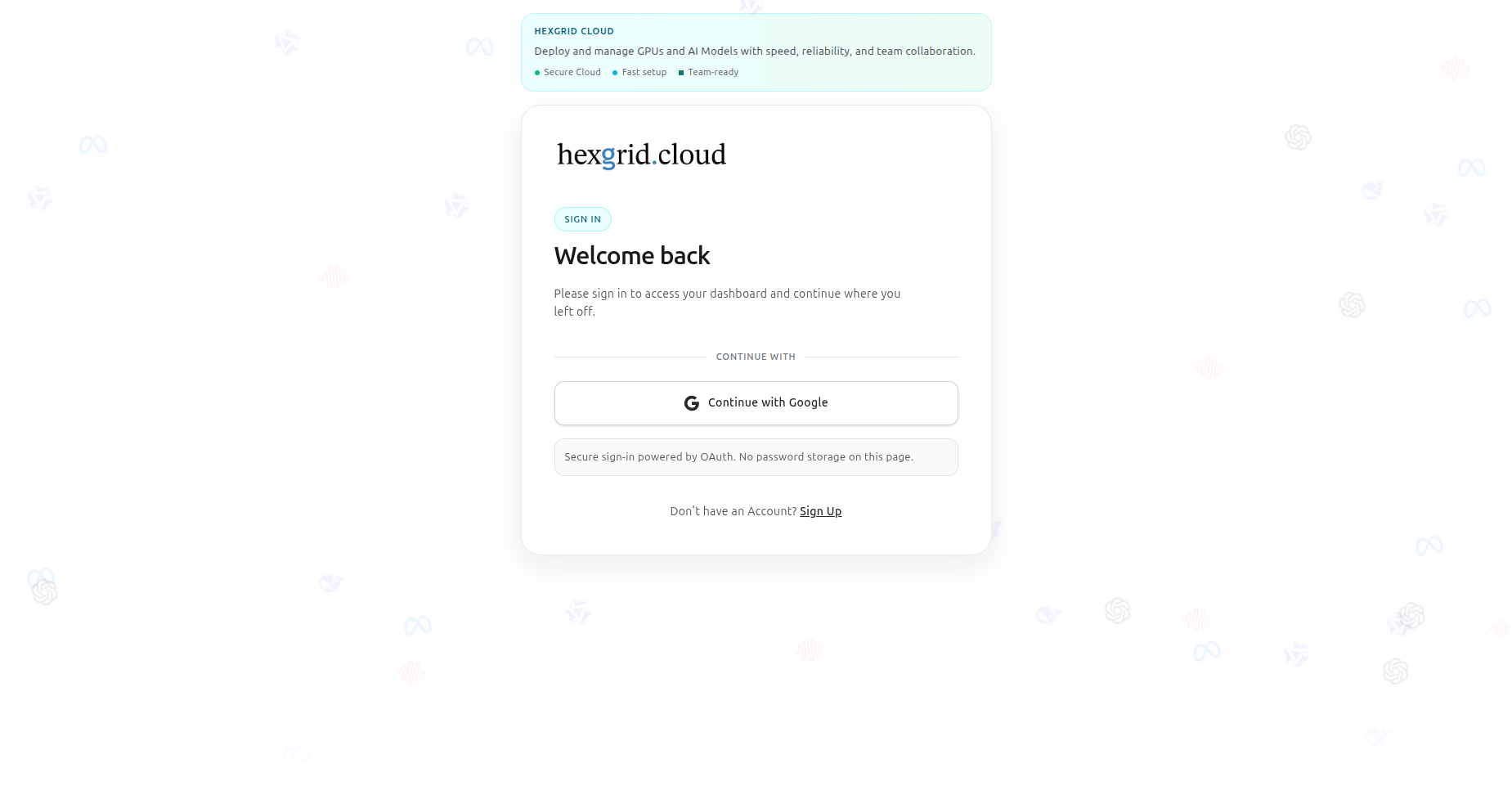
3
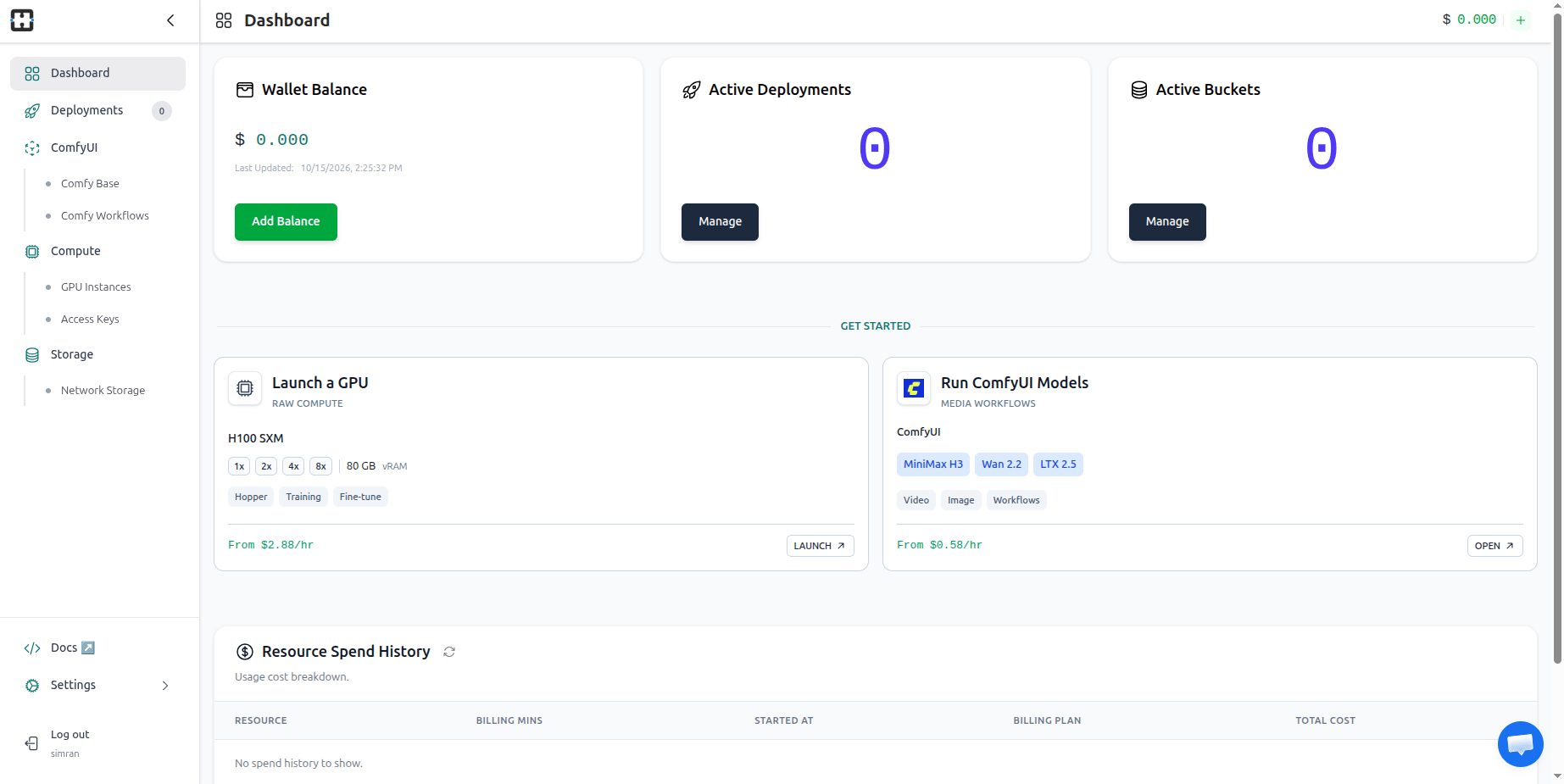
Open Access Keys
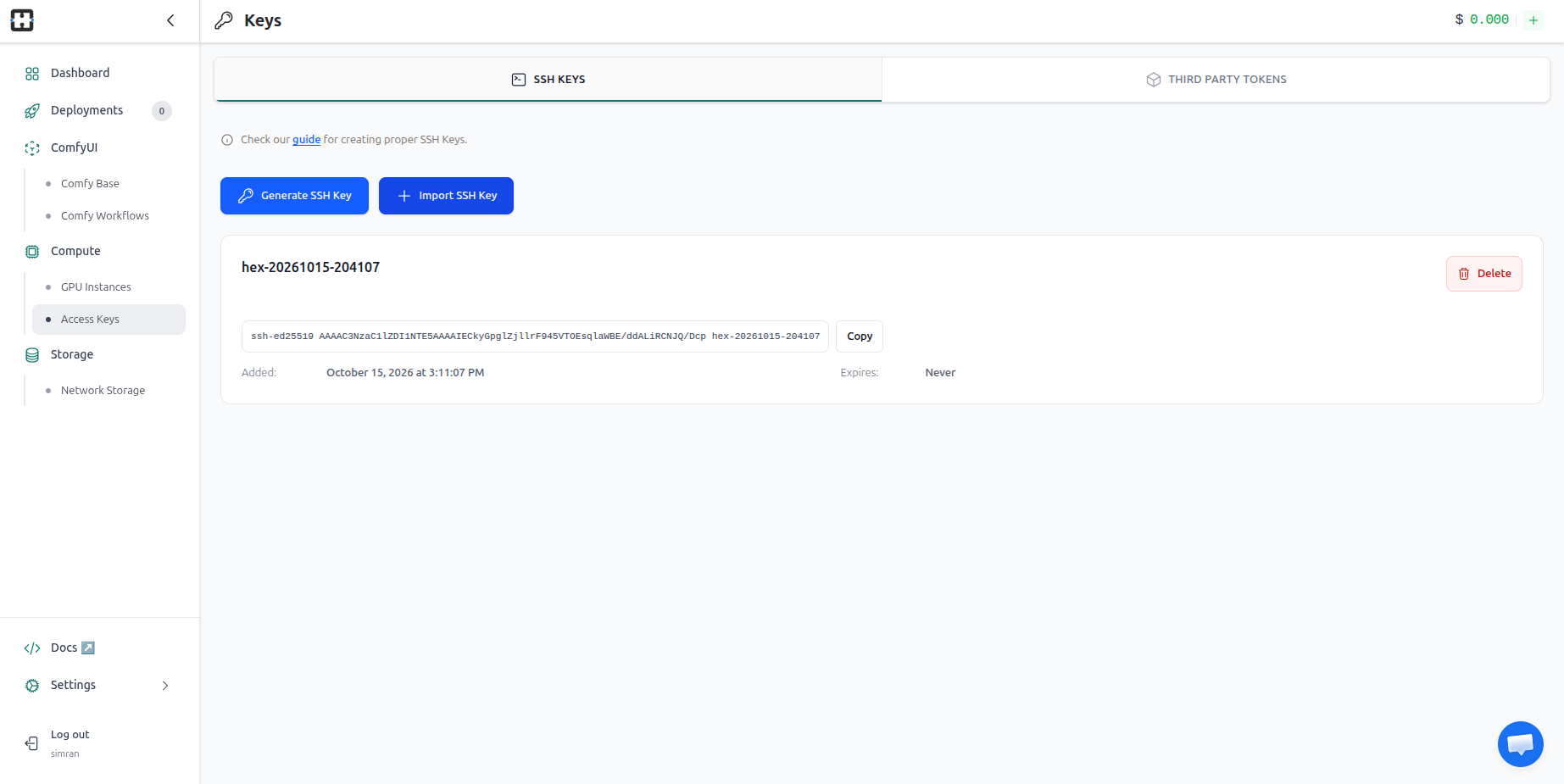
In the left sidebar, find Compute and select Access Keys. Choose the SSH Keys tab. You can generate a new key in HexGrid Cloud or import an existing public key.
Add an SSH key
Choose one of the following options.- A: Generate in HexGrid Cloud
- B: Generate on your computer
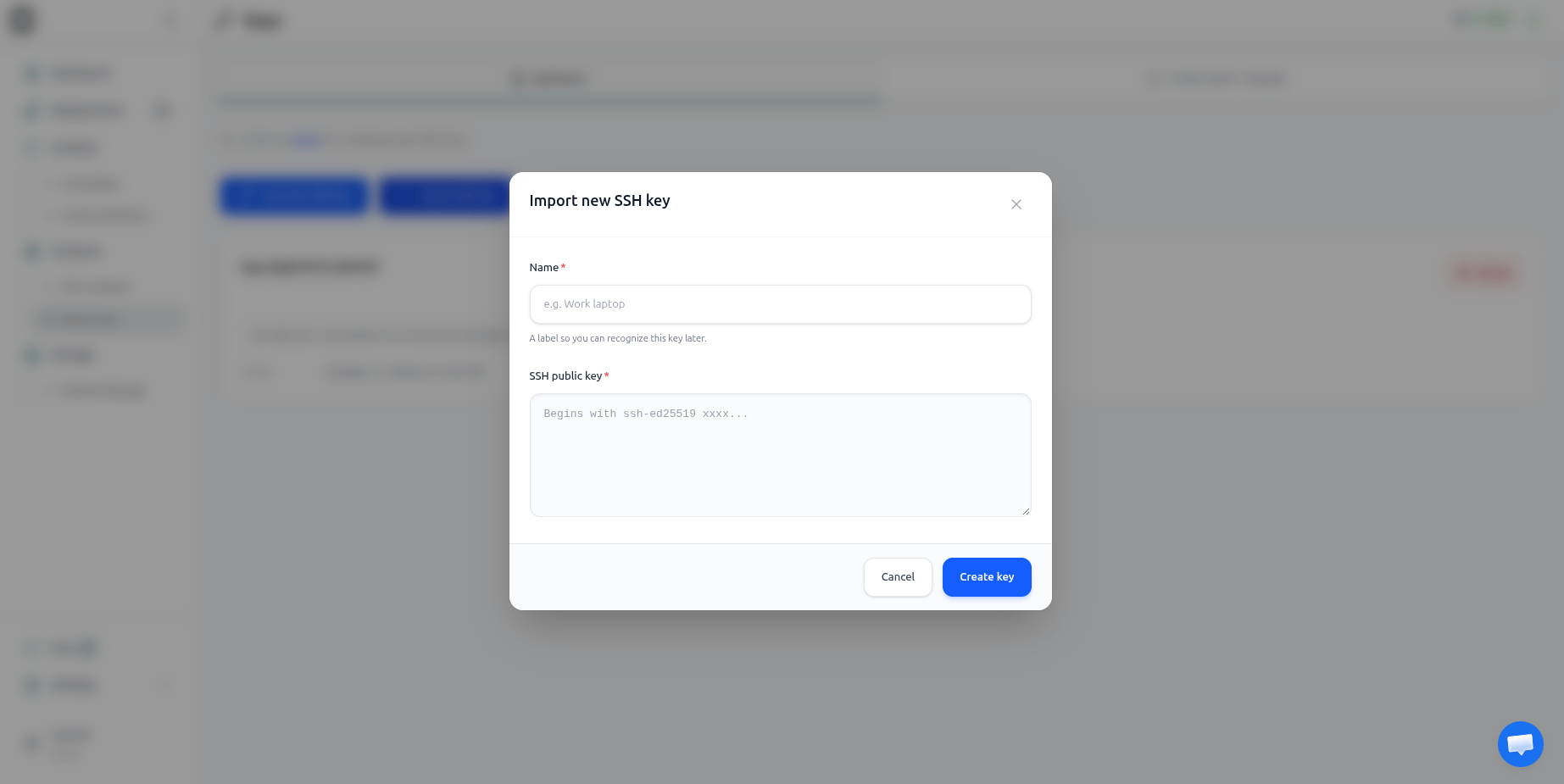
- C: Import an existing key
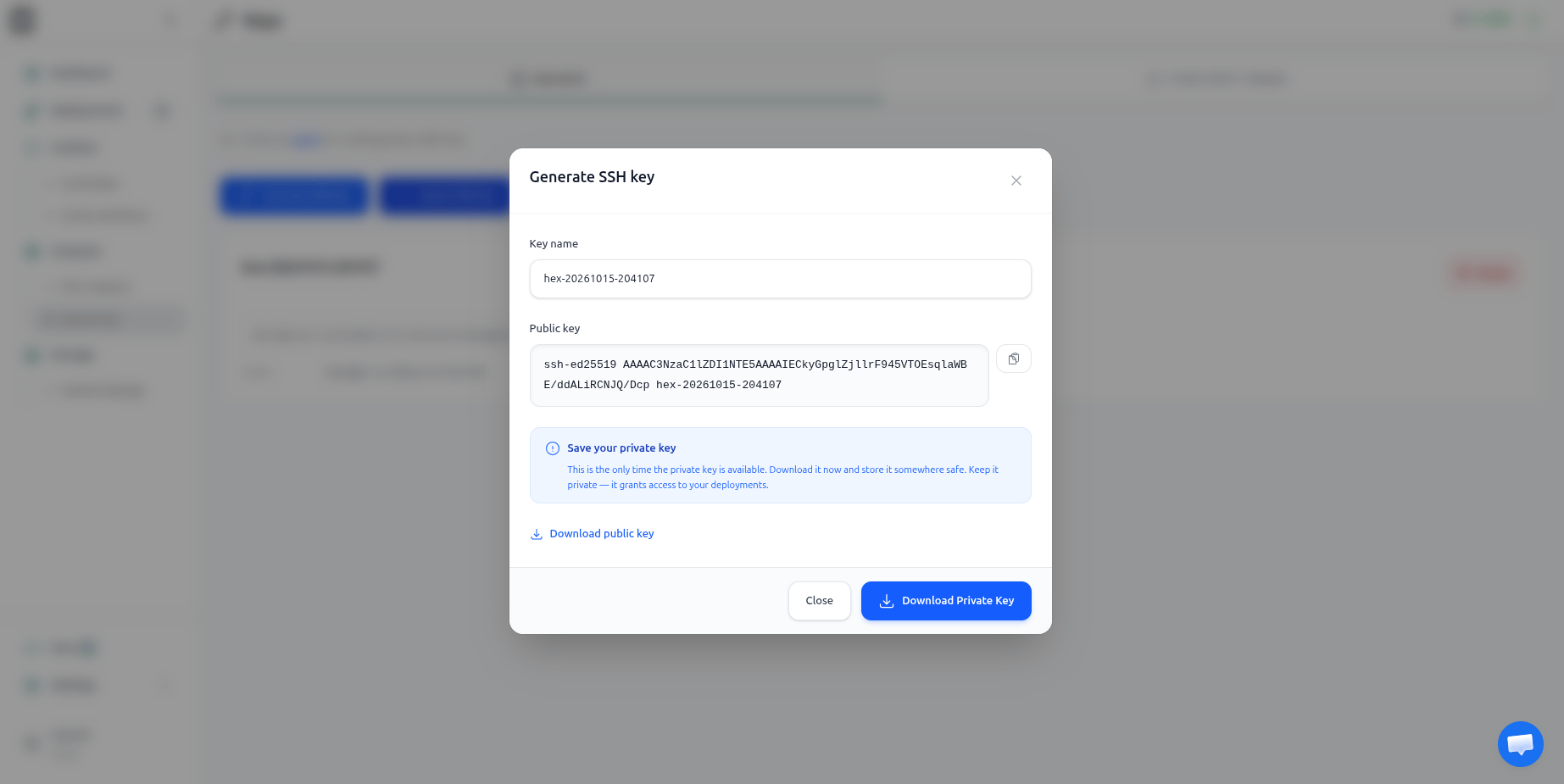
- Click Generate SSH Key.
- A key is generated automatically; edit its name if desired.
- Click Download Private Key and save it securely. The private key may only be available for download at this point.
- Use Download public key if you need a copy of the public key.
- Close the dialog. Your key appears in the list.
Manage saved keys
The SSH Keys page shows saved keys. You can copy the public key or delete a key you no longer need.Before deleting a key, check whether any deployment or machine depends on it.