1. Navigating to ComfyUI Deployments
1.1 Open the Deployments Section
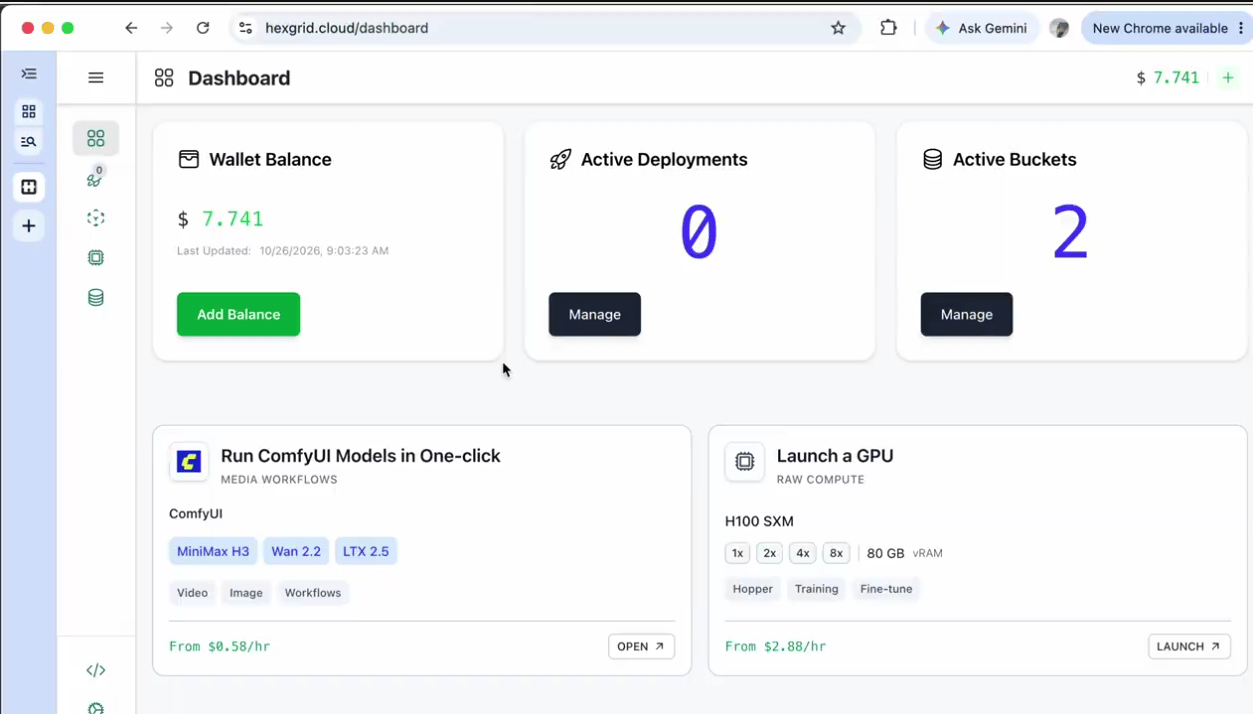
From the dashboard:- Locate the navigation sidebar on the left side.
- Find the Deployments section.
- Click the Deployments icon.
- You will be redirected to the Deployments page.
2. Deploying a ComfyUI Model
2.1 Start a New ComfyUI Deployment
- Open the Deployments page.
- Click the Run ComfyUI Workflow button.
- The ComfyUI deployment configuration page will open.
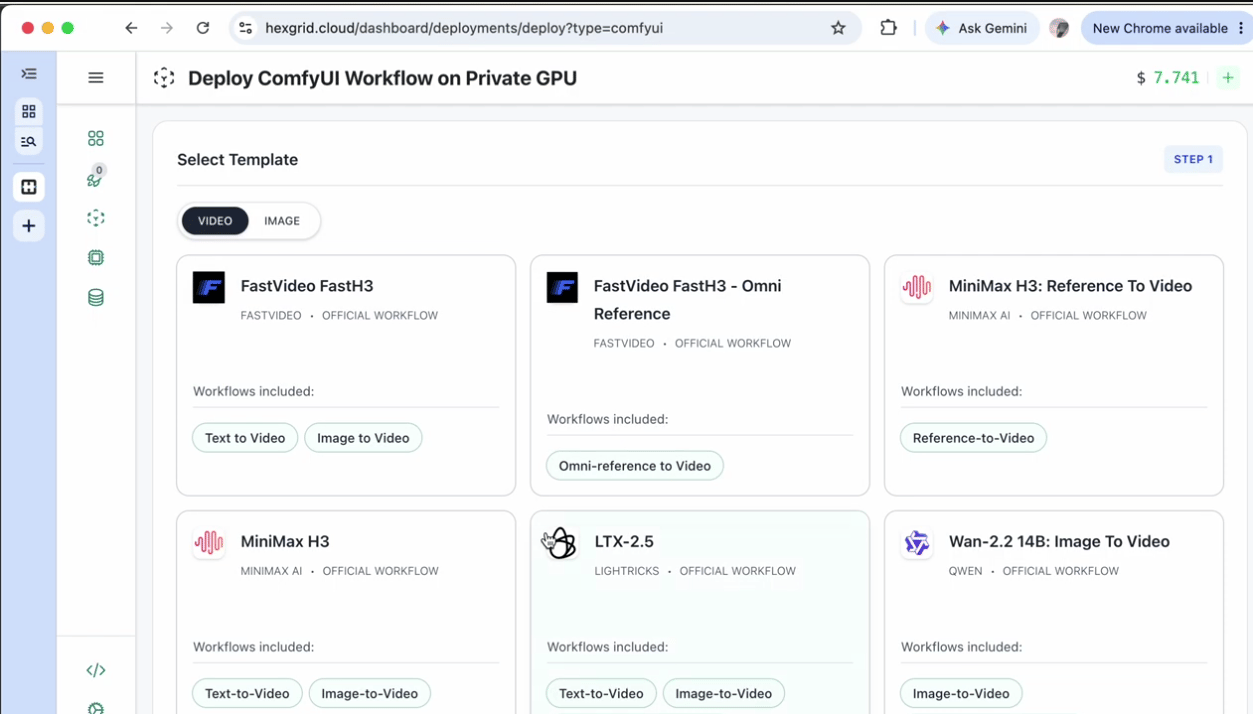
- Browse the available models and identify the model you want to deploy.
2.2 Select the FastH3 Omni Reference Model
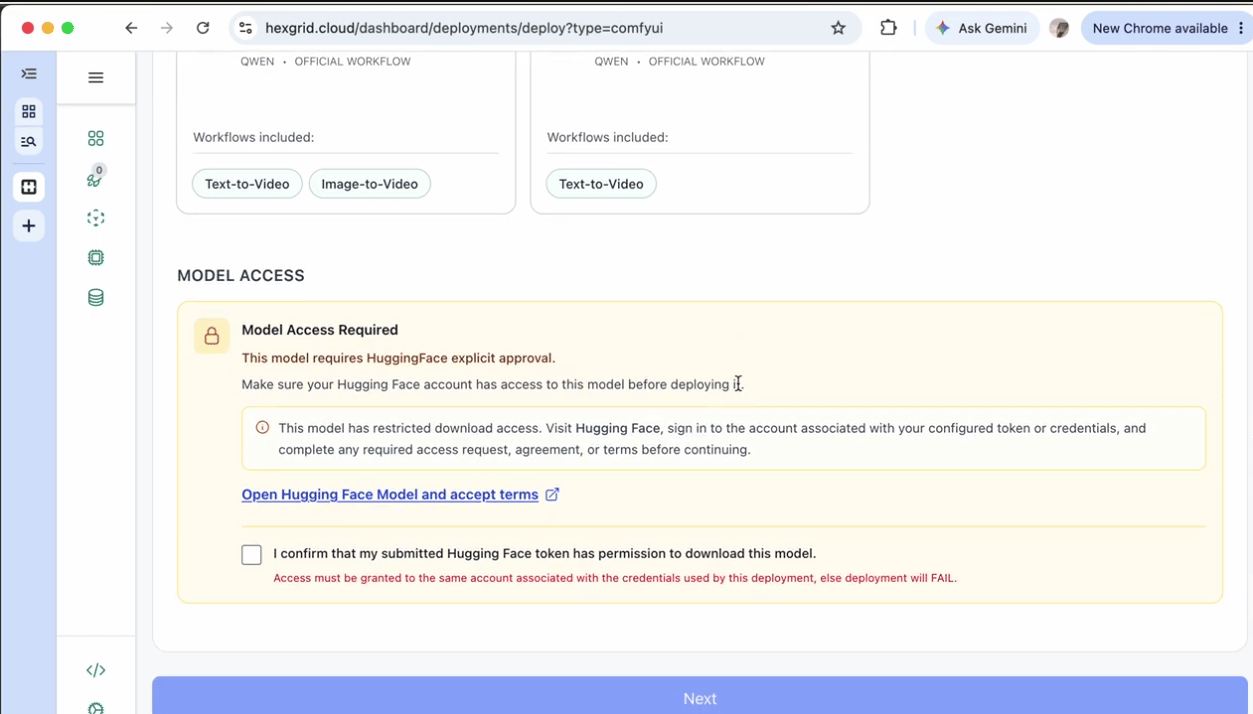
- Locate the FastH3 Omni Reference model.
- Review the model information.
- Check the supported workflows.
- Text-to-Video
- Image-to-Video
2.3 Confirm Model Configuration
After selecting the model:- Review the selected model and its configuration.
- Ensure all required settings are correct.
- Click Next to continue with GPU deployment.
3. GPU Provisioning
3.1 Select GPU and Deploy
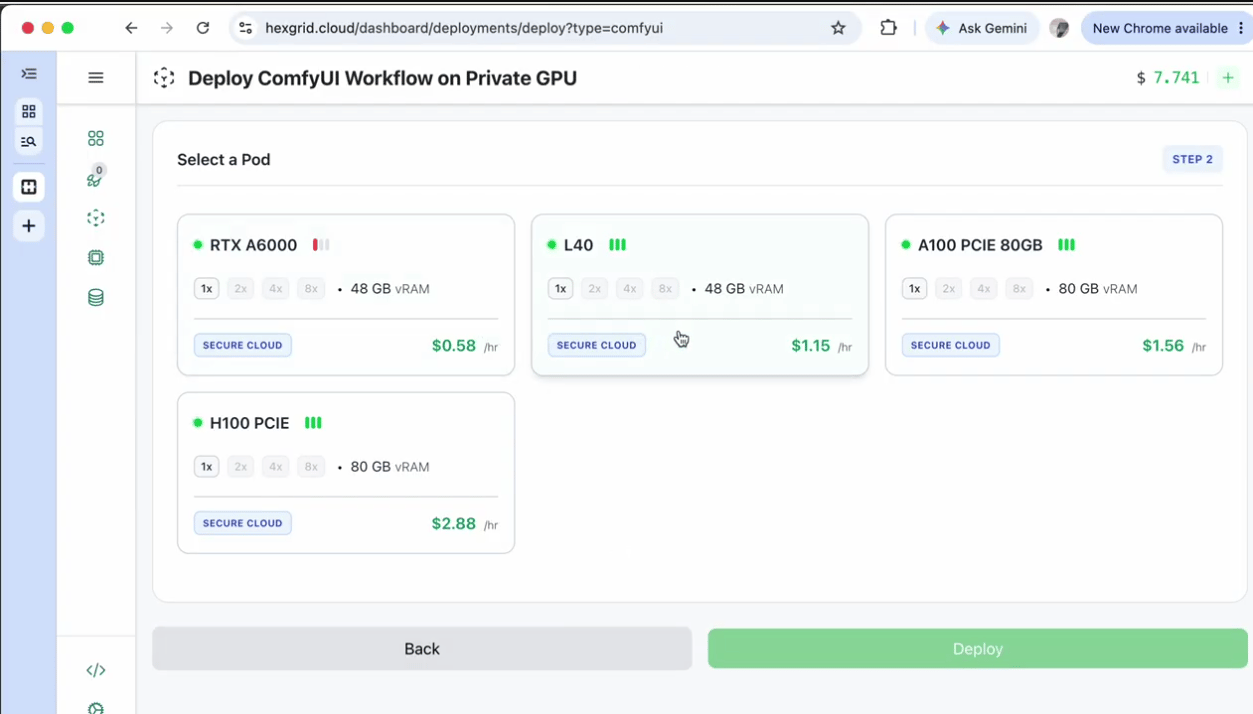
After completing the model configuration:- Select the required GPU configuration from the available options.
- Review the GPU specifications, including VRAM, CPU, RAM, region, and hourly pricing.
- Once satisfied with the configuration, click Deploy to initiate the deployment.
3.2 Monitor Deployment Status
After clicking Deploy, the deployment will begin, and you will be redirected to the Deployment Details page. Initially, the deployment status will show Allocating Resources, indicating that Hexgrid is allocating the selected GPU resources.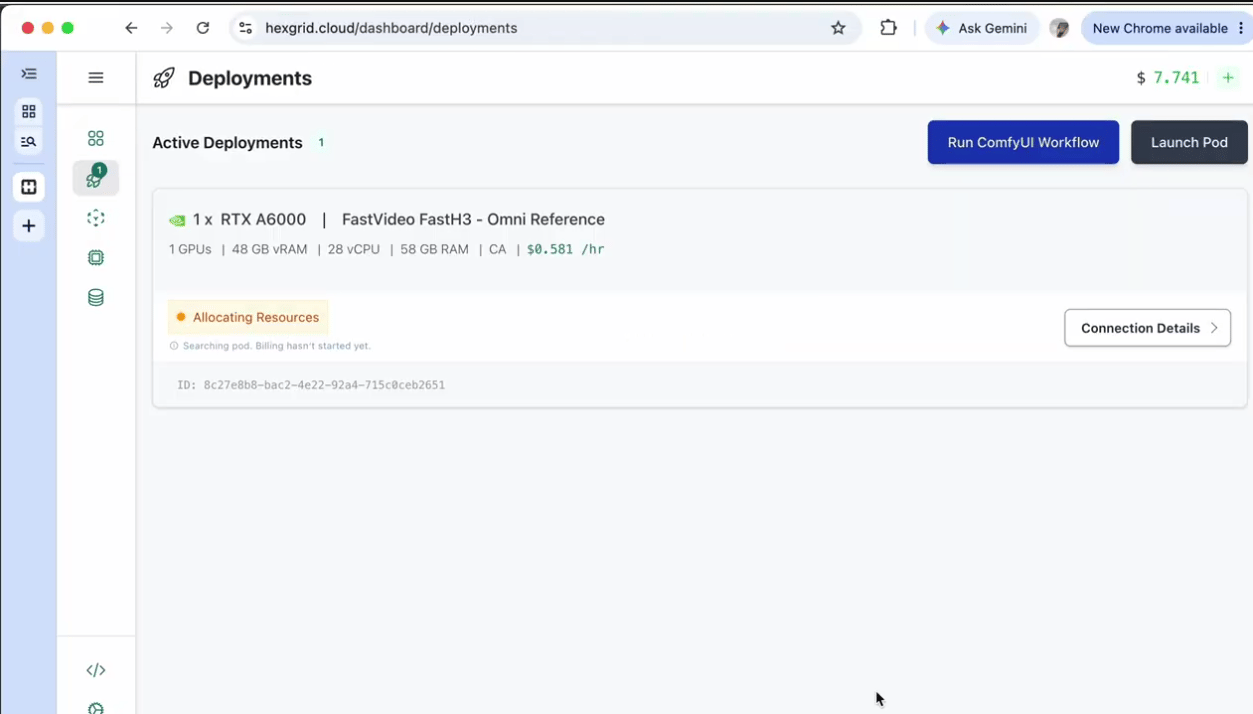
3.3 Wait for Provisioning
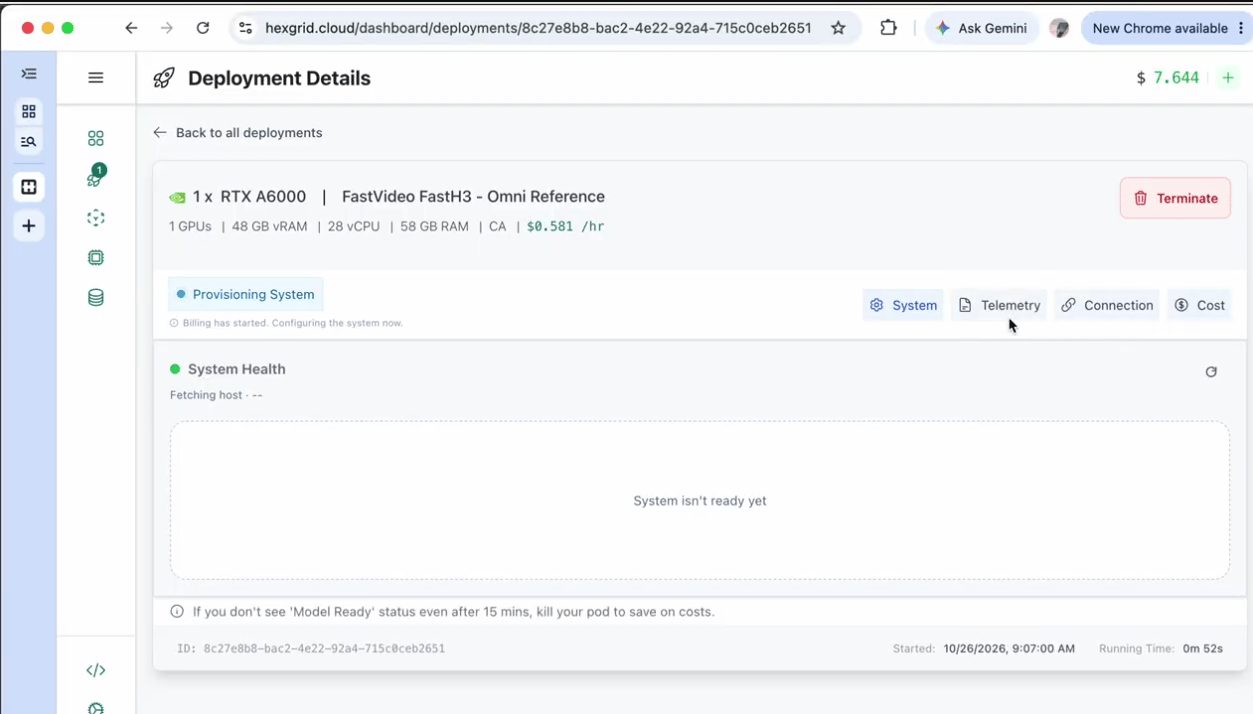
After approximately 5–10 minutes, the deployment status will change to Provisioning System. During this stage, Hexgrid prepares the GPU environment and initializes the required model files.- Keep the Deployment Details page open.
- Monitor the deployment status and System Health.
- Wait for the model initialization process to complete.
- Once the model is ready, proceed to launch ComfyUI.
4. Understanding Deployment Details
Once provisioning is complete, the deployment status changes to Model Ready. The Deployment Details page provides four sections to monitor and access your deployment.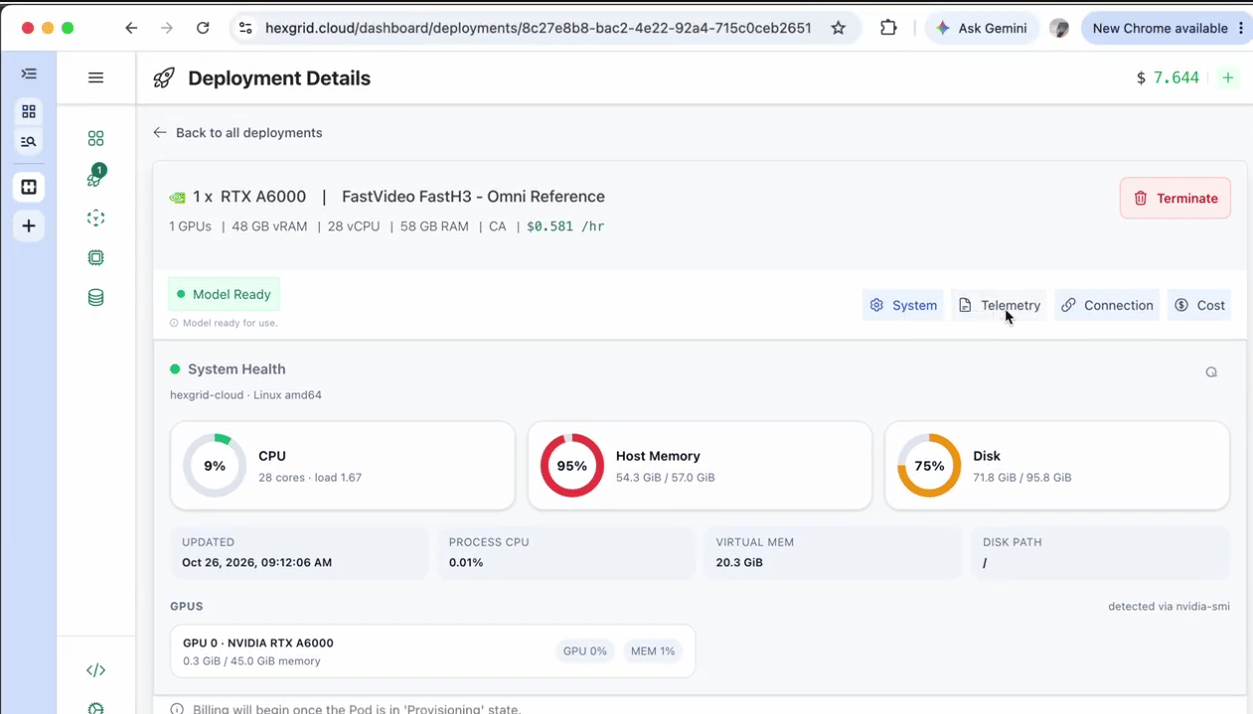
4.1 System
Displays GPU instance information, deployment status, and system health. Verify that the status shows Model Ready before proceeding.4.2 Telemetry
Provides system resource and performance monitoring information.4.3 Connection
Contains the connection details required to access the deployed environment. Under this tab, you will find the ComfyUI URL. Copy this URL and open it in a new browser tab to access ComfyUI.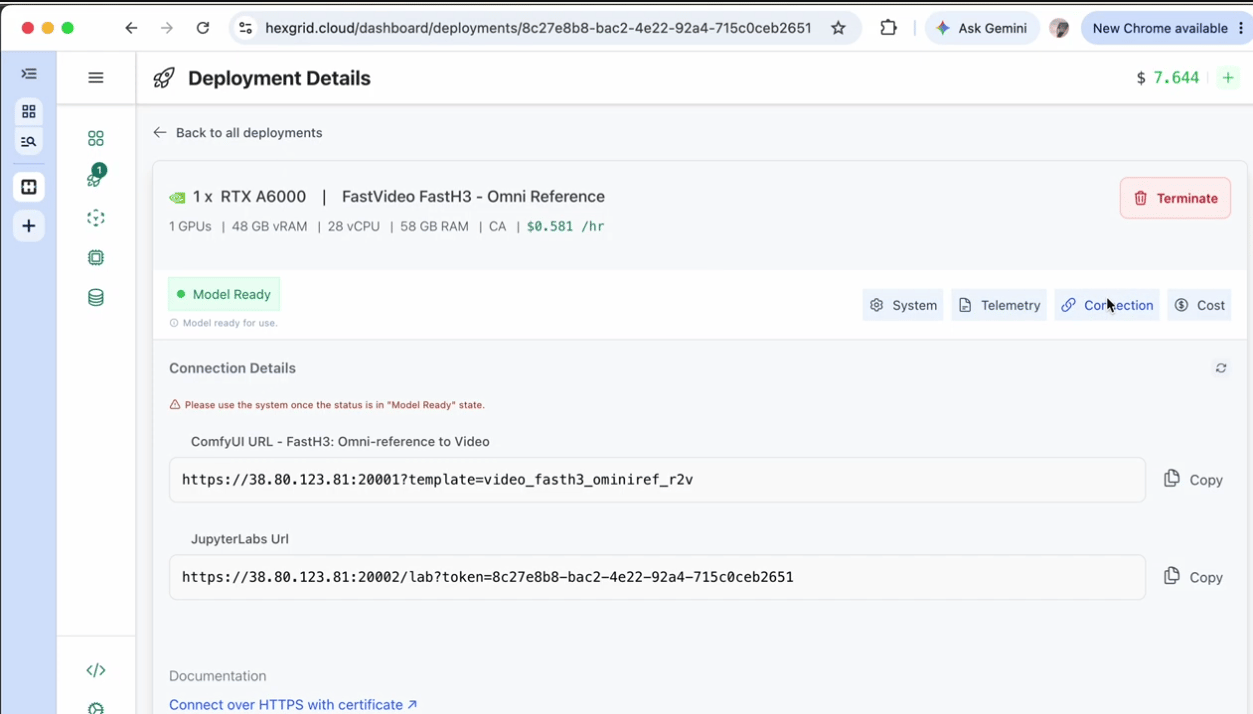
4.4 Cost
Displays deployment billing information, including:- Hourly GPU cost.
- Billed minutes.
- Total accrued cost.
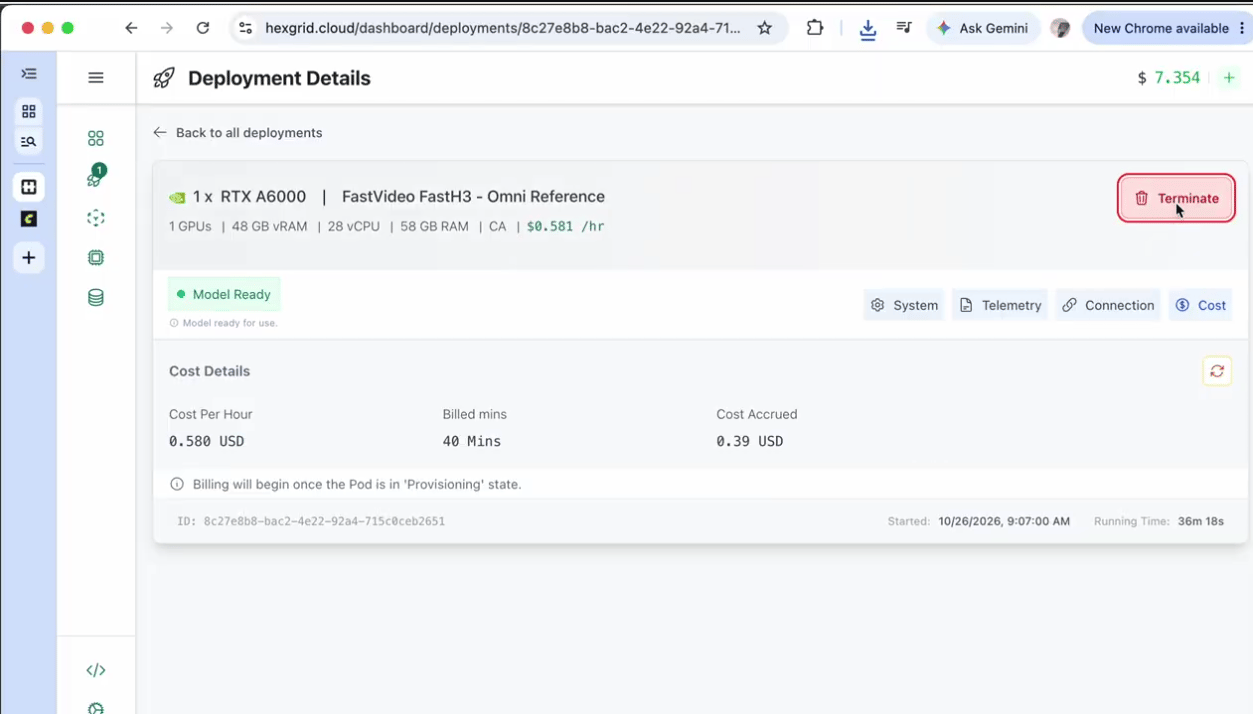
4.5 Understanding GPU Billing
GPU deployments continue to incur charges while the instance remains active, even when no generation is running. Terminate unused deployments to avoid unnecessary costs.5. Accessing the ComfyUI Environment
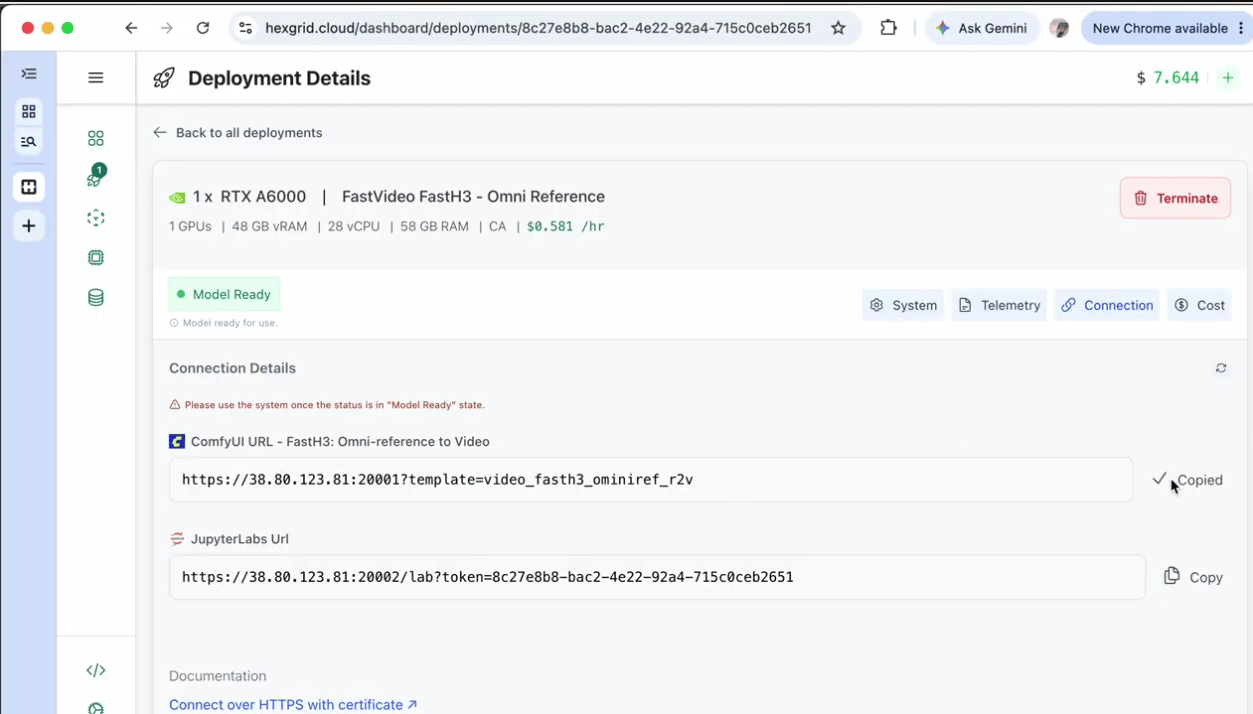
5.1 Copy the ComfyUI URL
- Open the Connection tab on the Deployment Details page.
- Locate and copy the ComfyUI URL.
5.2 Open ComfyUI
- Open a new browser tab.
- Paste the copied URL into the address bar and press Enter.
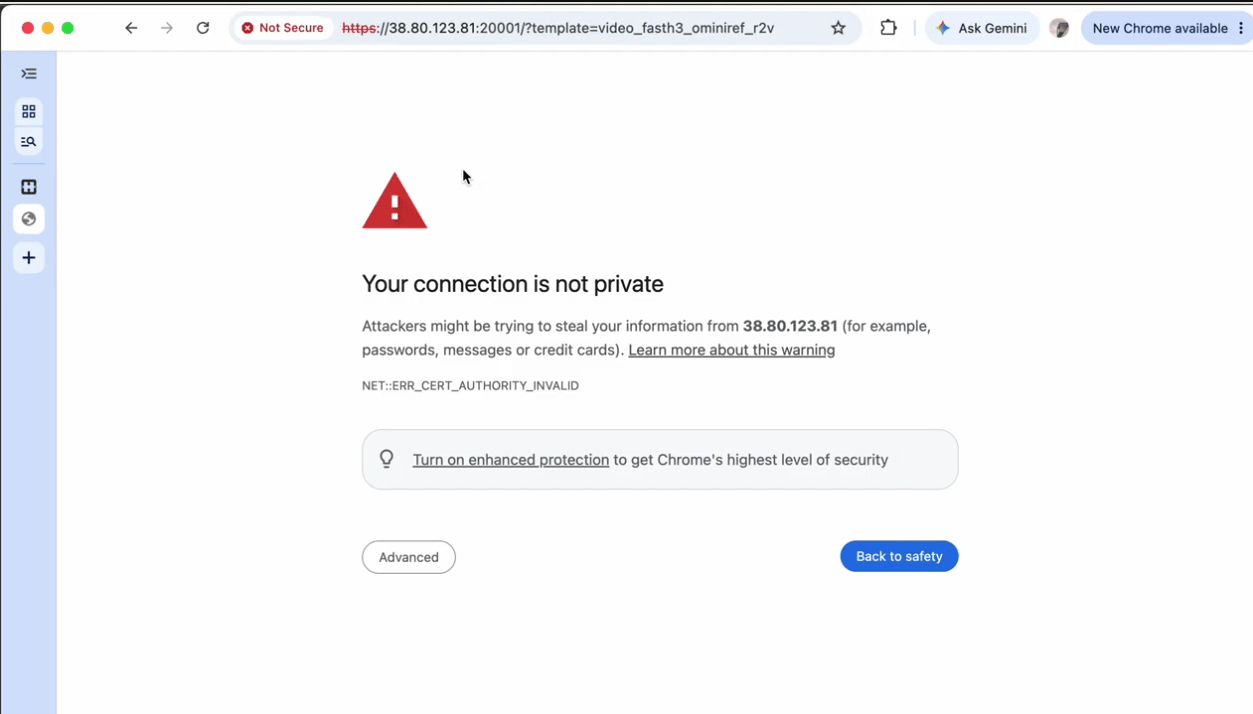
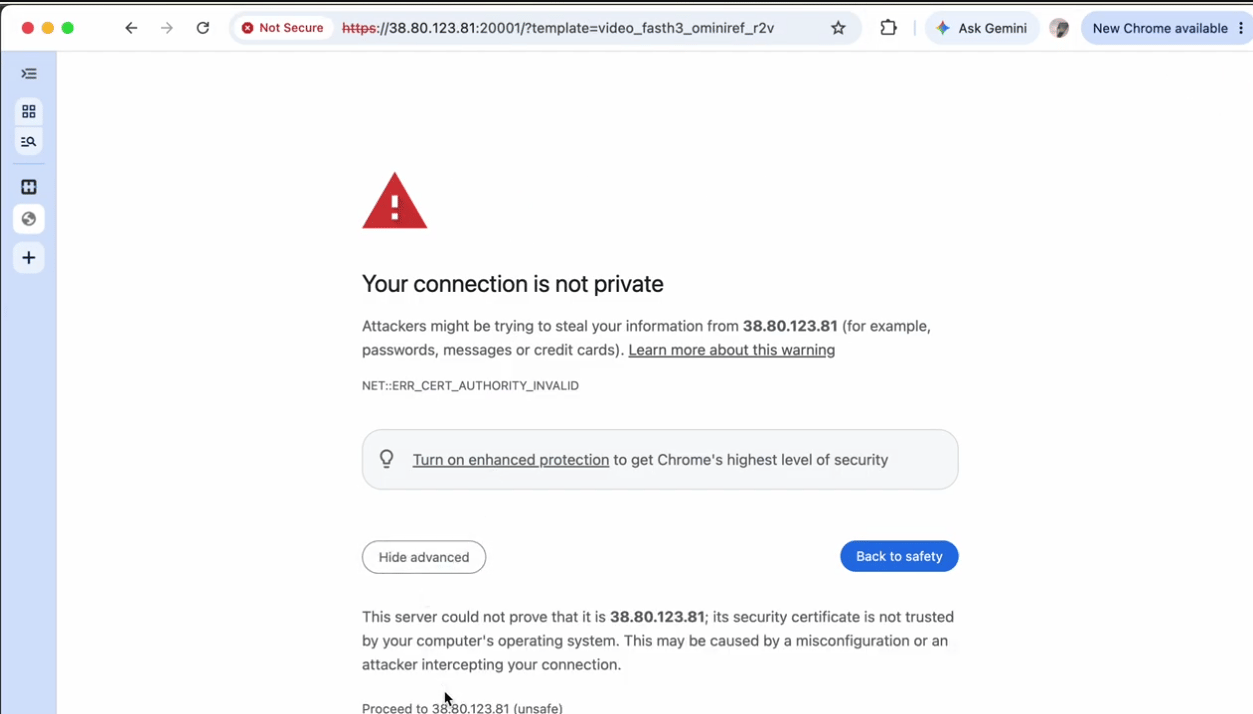
- If a security warning appears stating that the connection is not private, click Advanced.
- Click Proceed to continue to the ComfyUI environment.
- Wait for ComfyUI to load.
6. ComfyUI Workflow Overview
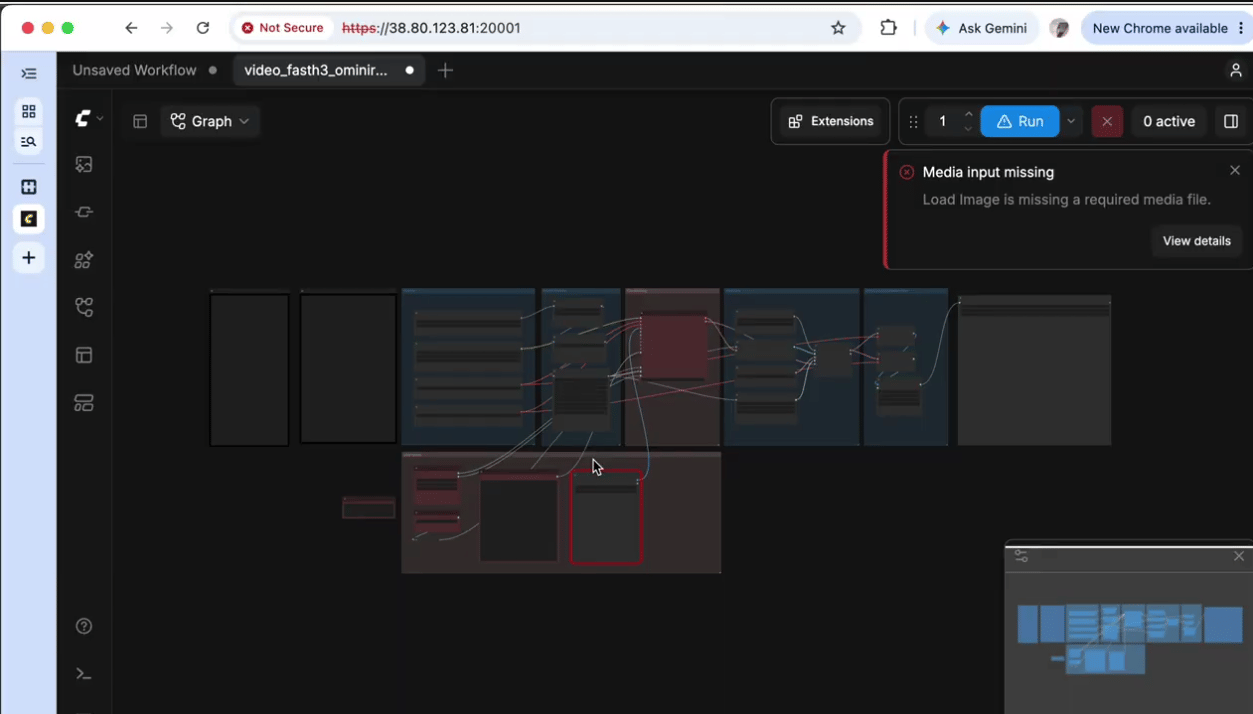
Once ComfyUI loads, the preconfigured FastH3 Omni Reference workflow will be displayed on the workspace. The workflow contains all the required connected nodes for video generation, including:- Models: Loads the required AI models.
- Conditioning: Processes prompts and reference inputs.
- Sampling: Controls video generation.
- User Inputs: Allows users to configure generation settings.
- Reference Images: Allows users to upload images.
- Output: Displays the generated video.
7. Generate a Video Using FastH3 Omni Reference
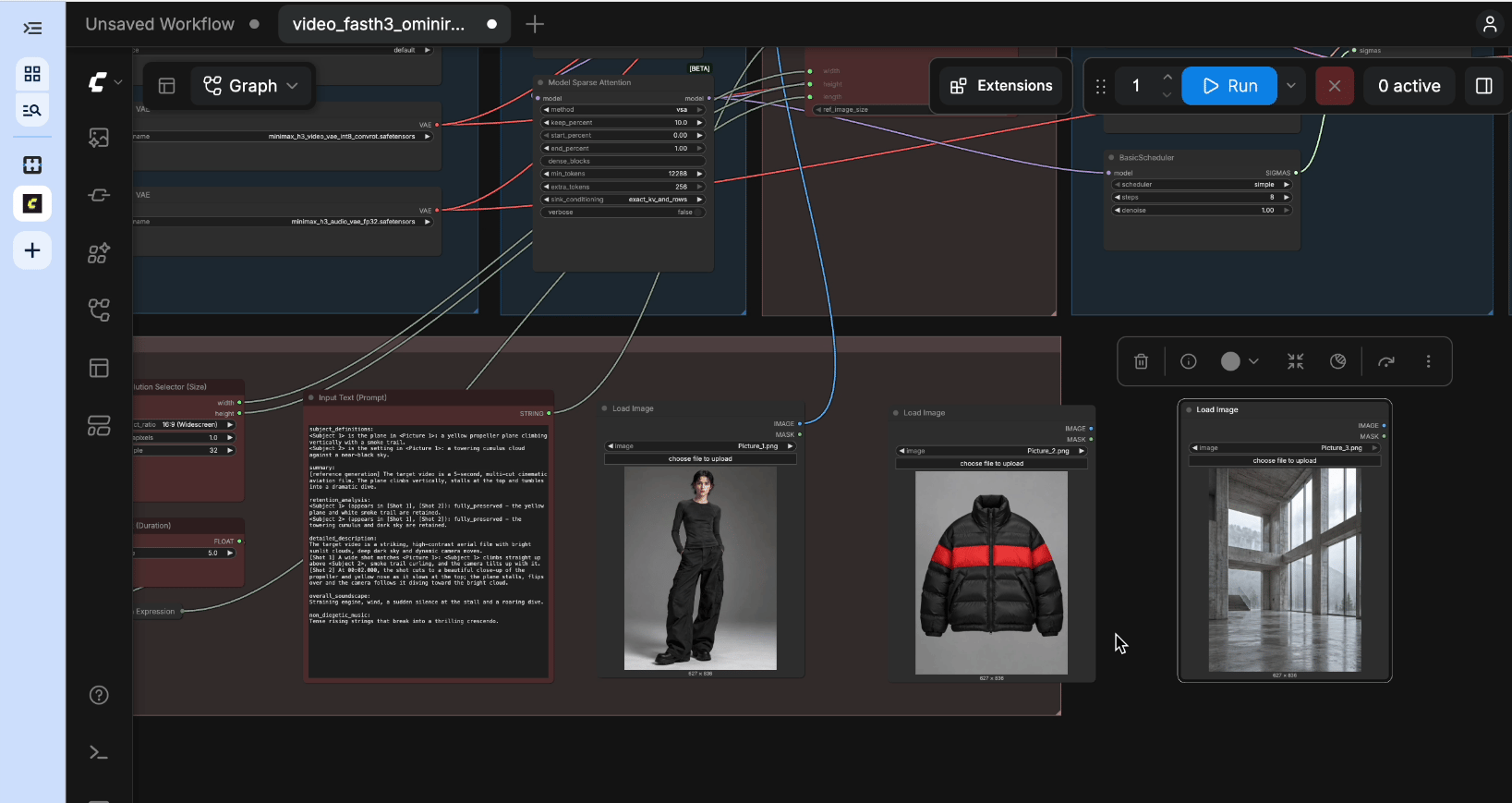
This example demonstrates how to generate a fashion video using three reference images and a text prompt.Step 1: Upload Reference Images
Prepare and upload three images into their corresponding Load Image nodes:- Subject: Person’s appearance and identity.
- Clothing: Black puffer jacket with a red chest band.
- Location: Modern architectural interior.
Step 2: Configure Generation Settings
Navigate to User Inputs and configure the following:Step 3: Enter the Prompt
Locate the Input Text (Prompt) field and enter a description of the desired video. For this example, describe the subject wearing the reference jacket, walking towards the camera inside the reference location, with realistic movement and cinematic lighting.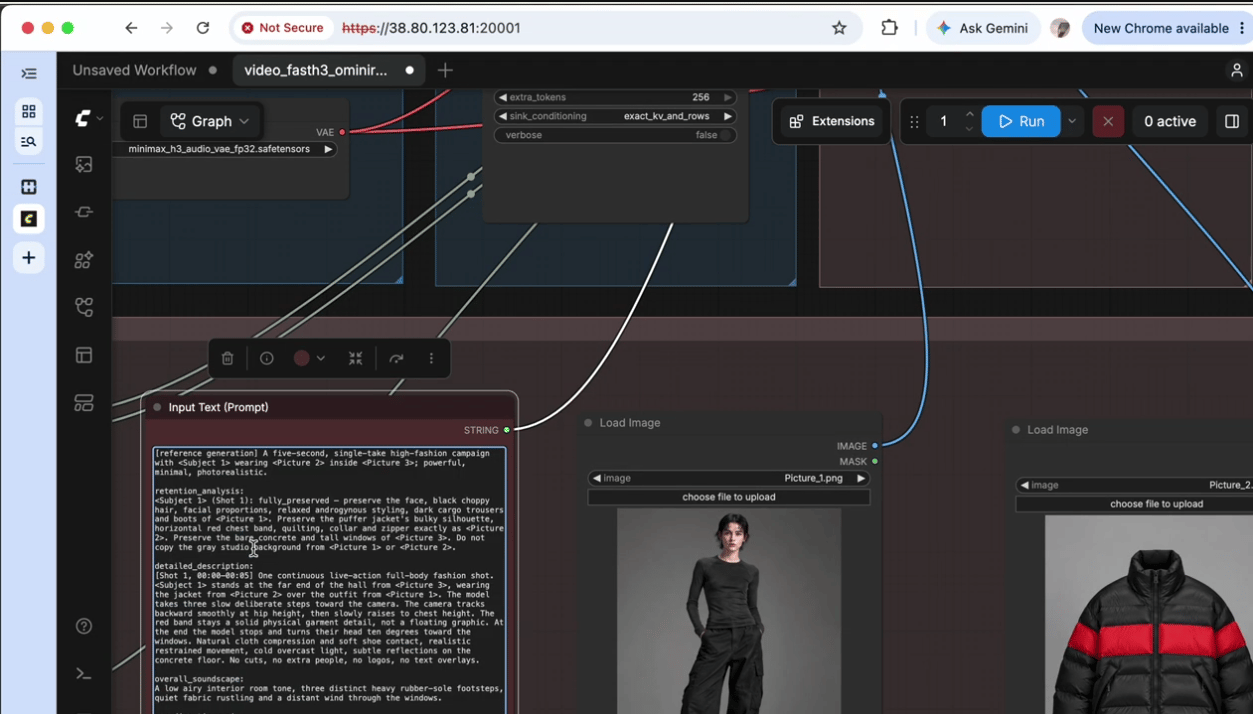
Step 4: Generate and Preview
- Click Run to execute the workflow.
- Wait for the generation process to complete.
- Preview the generated video in the output section.
- Access previous generations through the History panel.
- Save or download the final video using the available output controls.
8. Terminate the GPU Deployment
After completing video generation:- Return to the Hexgrid browser tab.
- Navigate to Deployments.
- Open the active FastH3 Omni Reference deployment.
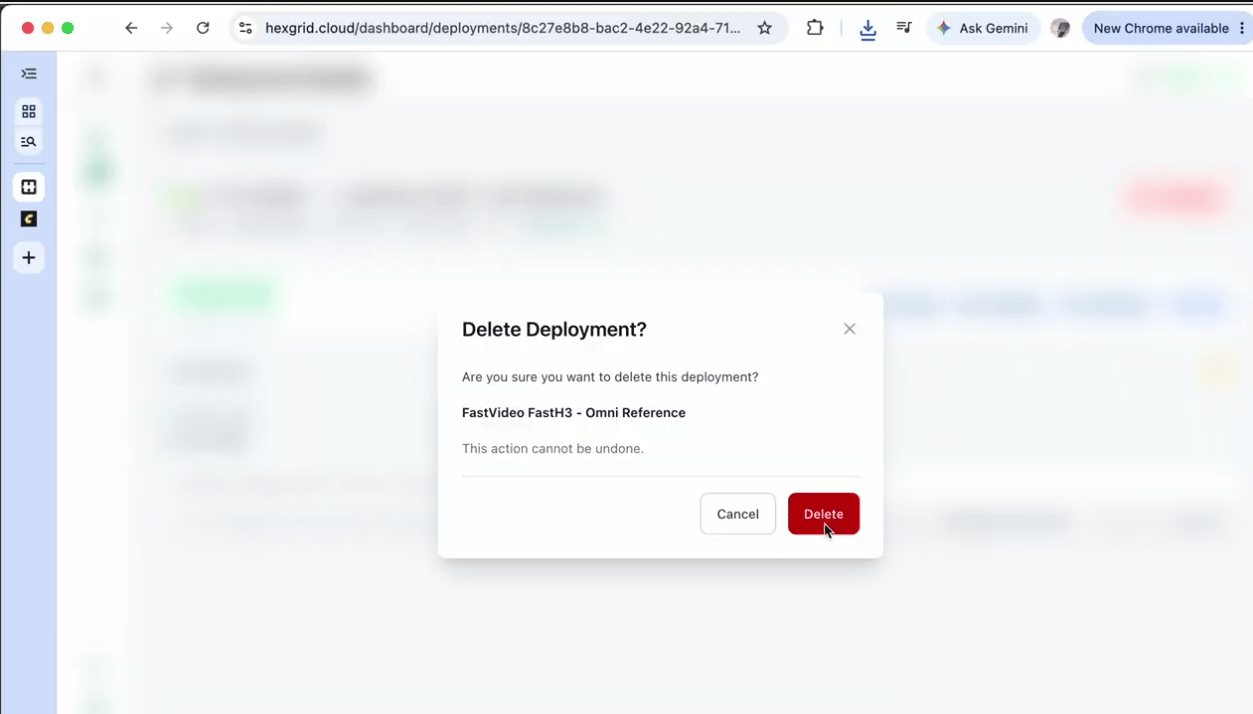
- Click Terminate.
- Confirm termination if prompted.