
Before you begin
You will need:- A device with an internet connection and a web browser.
- An email address or a Google account to sign up.
- A payment method accepted by the checkout page if you want to add wallet credit.
Homepage
Visit HexGrid Cloud
Sign-up page
Create an account
Terms and Conditions
Read the terms
Add balance step by step
1
Open HexGrid Cloud
Open your browser and visit https://hexgrid.cloud/. The homepage introduces the platform and shows the available ways to get started.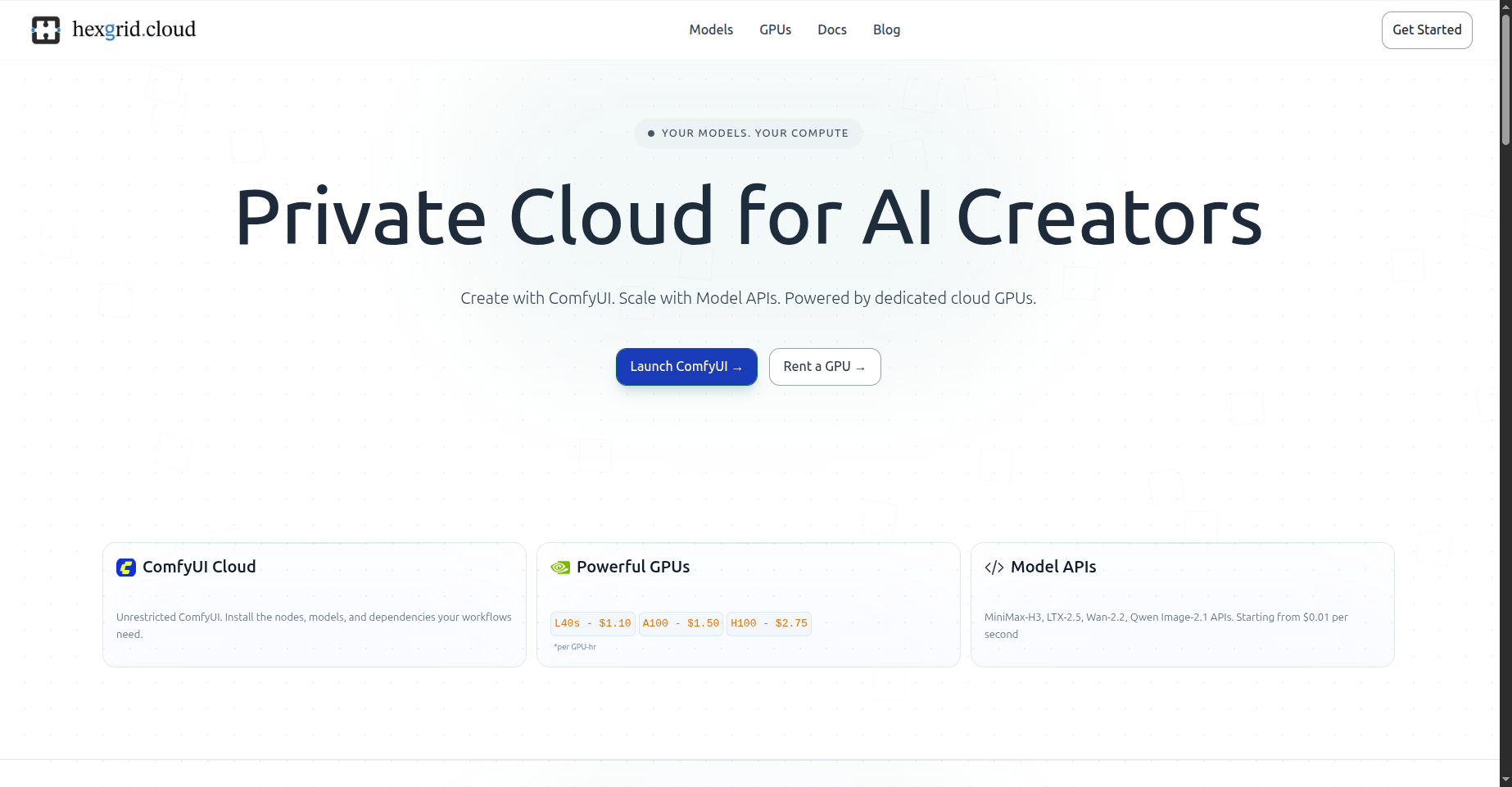
2
Create your account
On the sign-up page, choose Continue with Google and follow the prompts to select your Google account and approve sign-in. The platform may ask you to complete a workspace profile in the next step.If you already have an account, choose Sign In at the bottom of the sign-up card instead.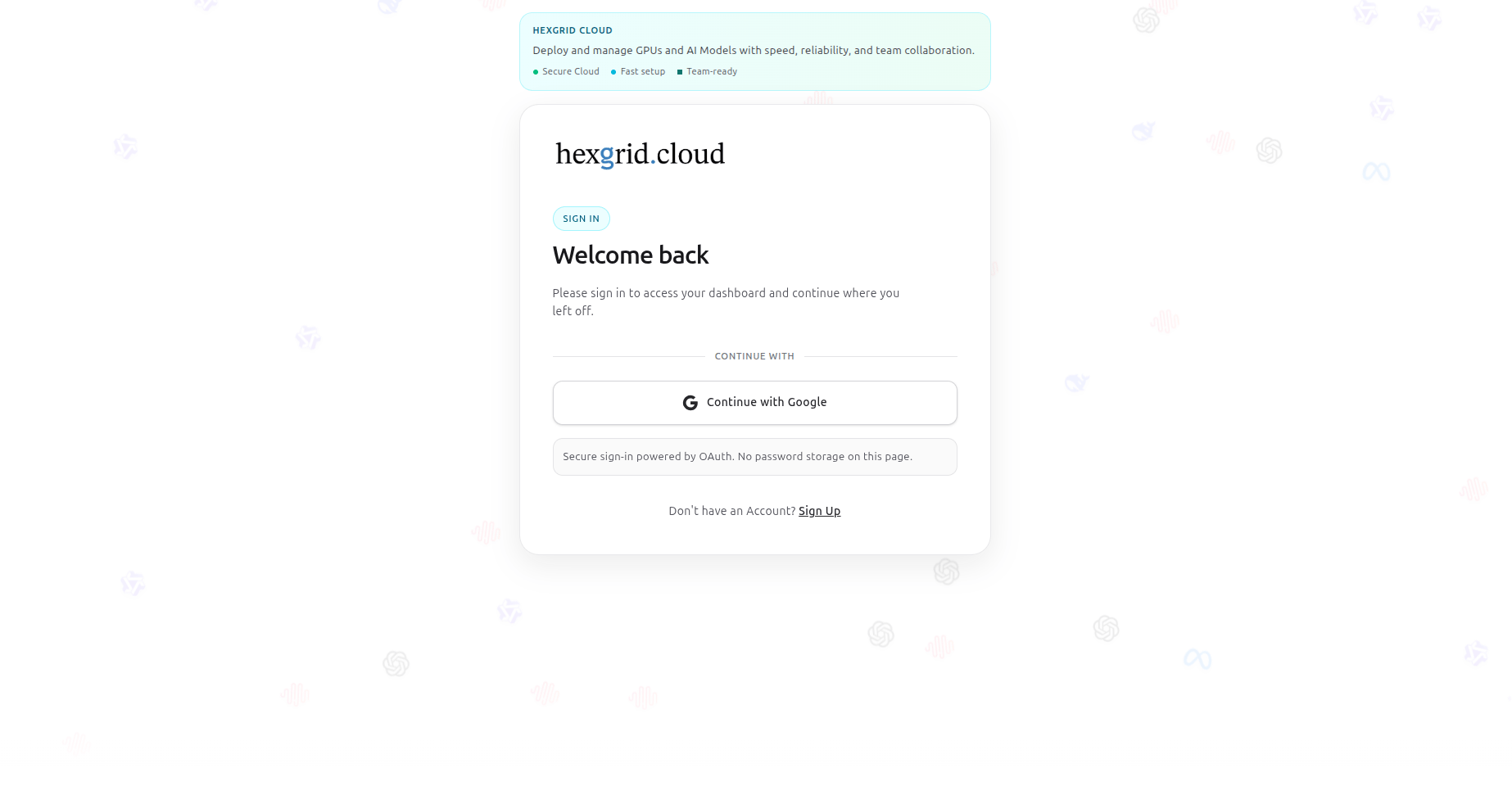
3
Find the wallet balance on the dashboard
After signing in, you will arrive at the dashboard. The Wallet Balance card shows the current amount of credit in your account. Your balance may be $0.000 if you have not added credit yet.There are three ways to open the same Add Balance window: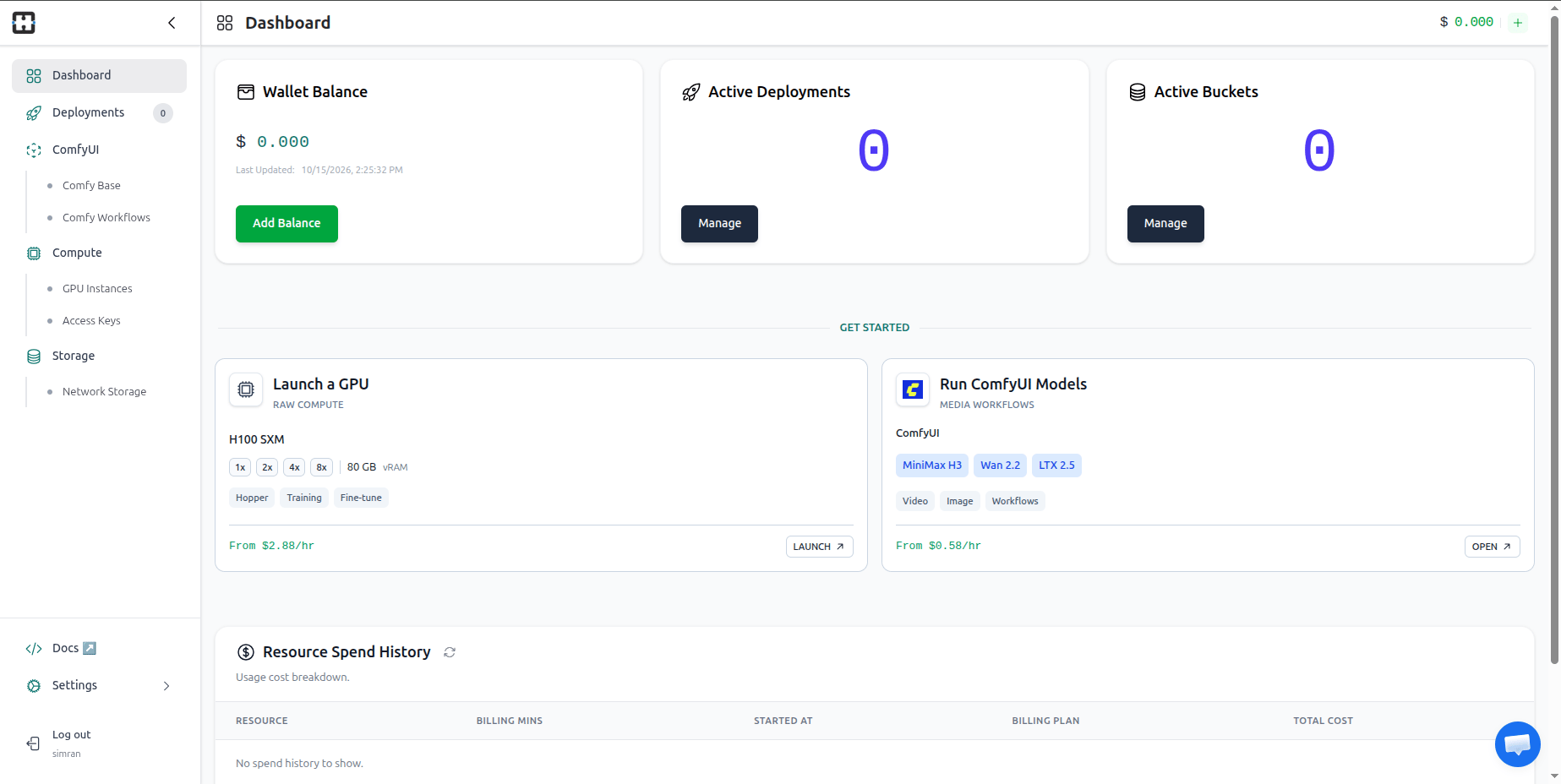
- On the Dashboard, click the green Add Balance button in the Wallet Balance card.
- Click the + icon next to the balance in the top-right corner.
- Open Settings → Billing, then click Add Balance on the Billing page.
Optional: Add balance from the Billing page
Optional: Add balance from the Billing page
If you prefer to use the Billing page, open Settings in the left sidebar, then select Billing. The page shows your wallet balance and Billing History.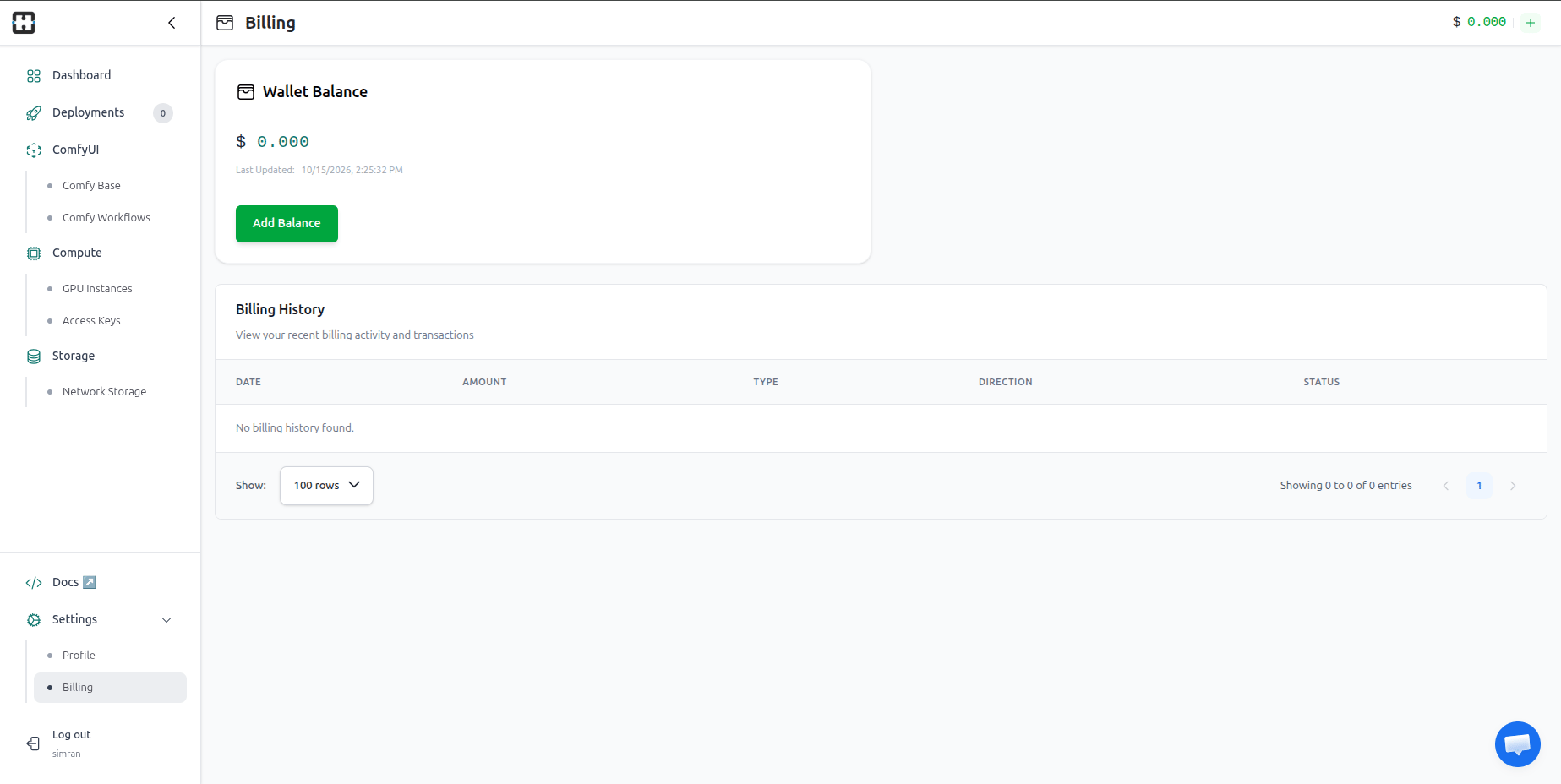
4
Choose the amount to add
In the Add Balance window, enter the amount in US dollars (USD), or select one of the suggested amounts: $5, $10, $25, or $100.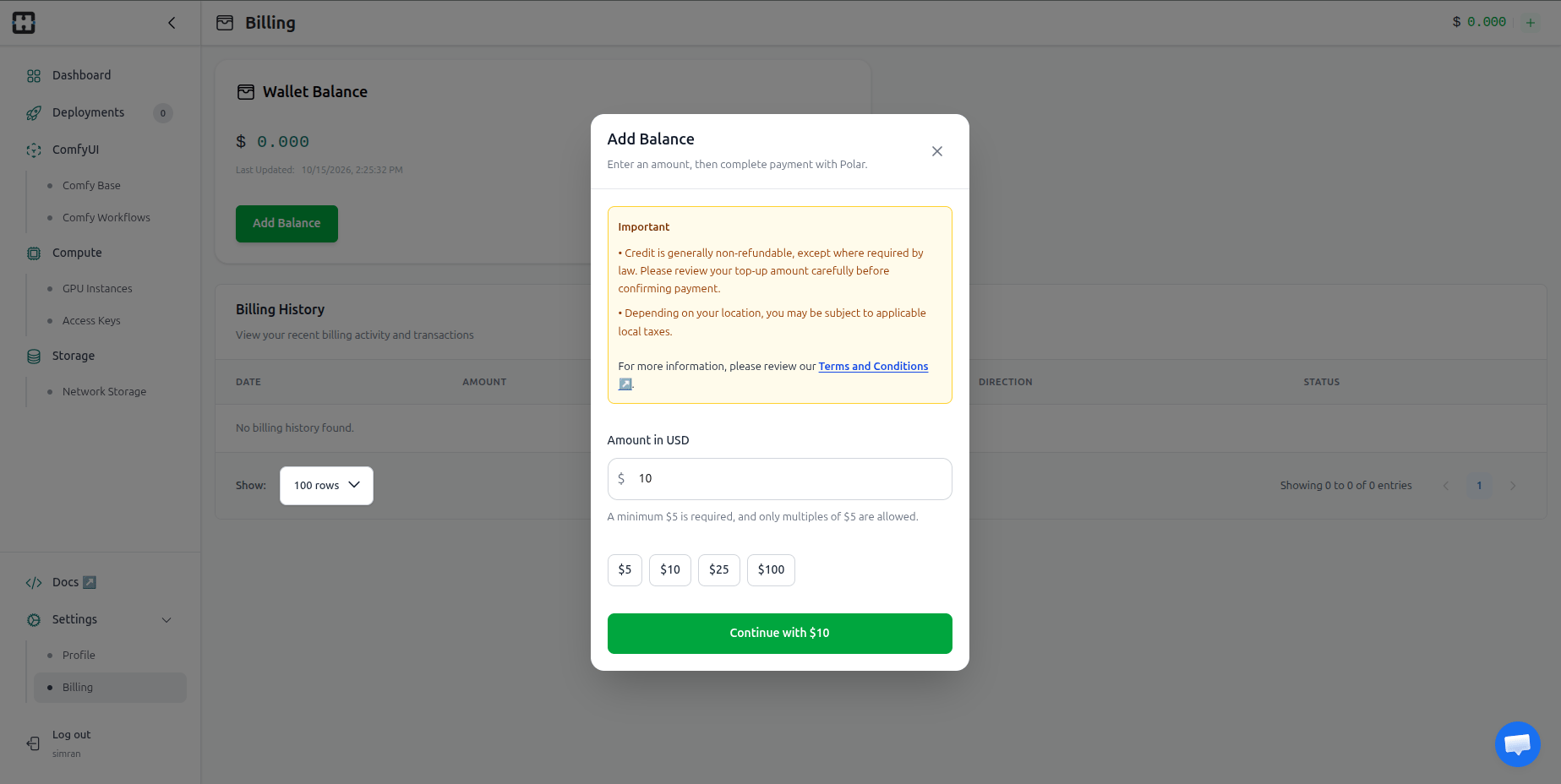
Important details shown in the window:
- The minimum top-up is $5.
- Only multiples of $5 are allowed (for example, $5, $10, $15, or $25).
- Credit is generally non-refundable, except where required by law.
5
Complete payment at checkout
After you click Continue, a secure checkout window powered by Polar opens. Review the total and any taxes before paying.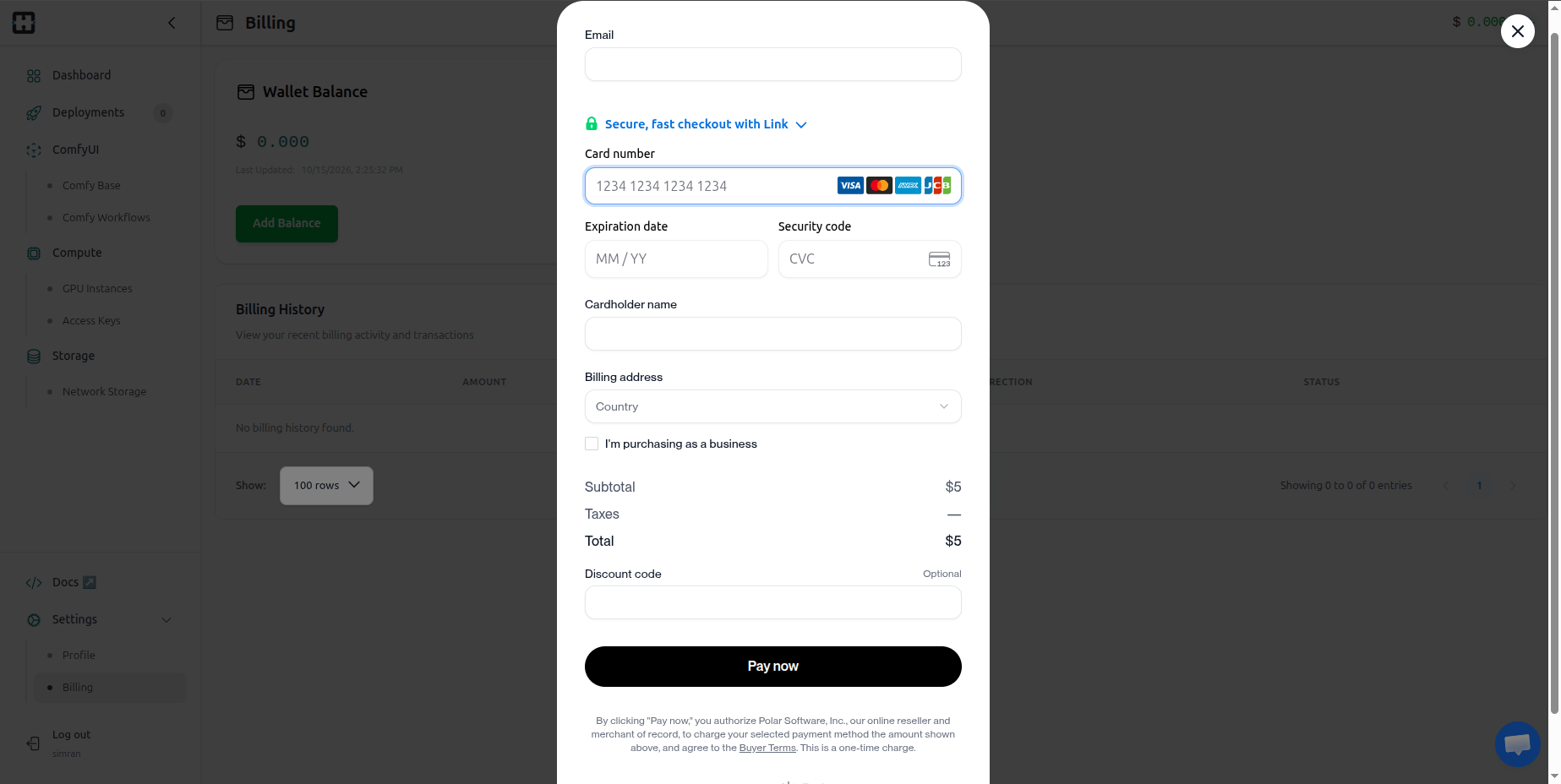
- Enter your email address if the checkout asks for it.
- Choose or confirm your payment method. If a saved method appears, make sure it is the one you want to use.
- Enter the cardholder name and billing address requested by the form.
- If you are purchasing as a business, select the checkbox only if it applies to you.
- Review the subtotal, taxes, and total. The final amount may differ from the selected top-up if taxes apply.
- If you have a discount code, enter it in the optional Discount code field.
- Click Pay now only after checking the details, then follow any instructions from your payment provider.
6
Confirm that your balance has updated
After payment, return to the HexGrid Cloud dashboard or Billing page and check the Wallet Balance. You can also look in Billing History for the transaction. Payment confirmation and balance updates may take a short time.
If the balance has not changed, avoid immediately paying a second time. First check whether the payment confirmation arrived and whether a transaction appears in Billing History. If you are still unsure, contact HexGrid Cloud support at contact@hexgrid.cloud.