
How the token works
A Hugging Face access token is a credential that lets applications authenticate with Hugging Face on your behalf. HexGrid Cloud uses it whenever your instances download a model from Hugging Face. Use a Read token for this setup. It can download any model your account can access, but it cannot change your repositories or settings.The token only carries your account’s existing permissions. For gated models, request or accept access on the model’s Hugging Face page before you try to download it.
Before you begin
You need:- A Hugging Face account.
- A HexGrid Cloud account.
- Access to the models you plan to download, including approval for any gated models.
Create a Hugging Face Read token
1
Sign in to Hugging Face
Go to Hugging Face and sign in.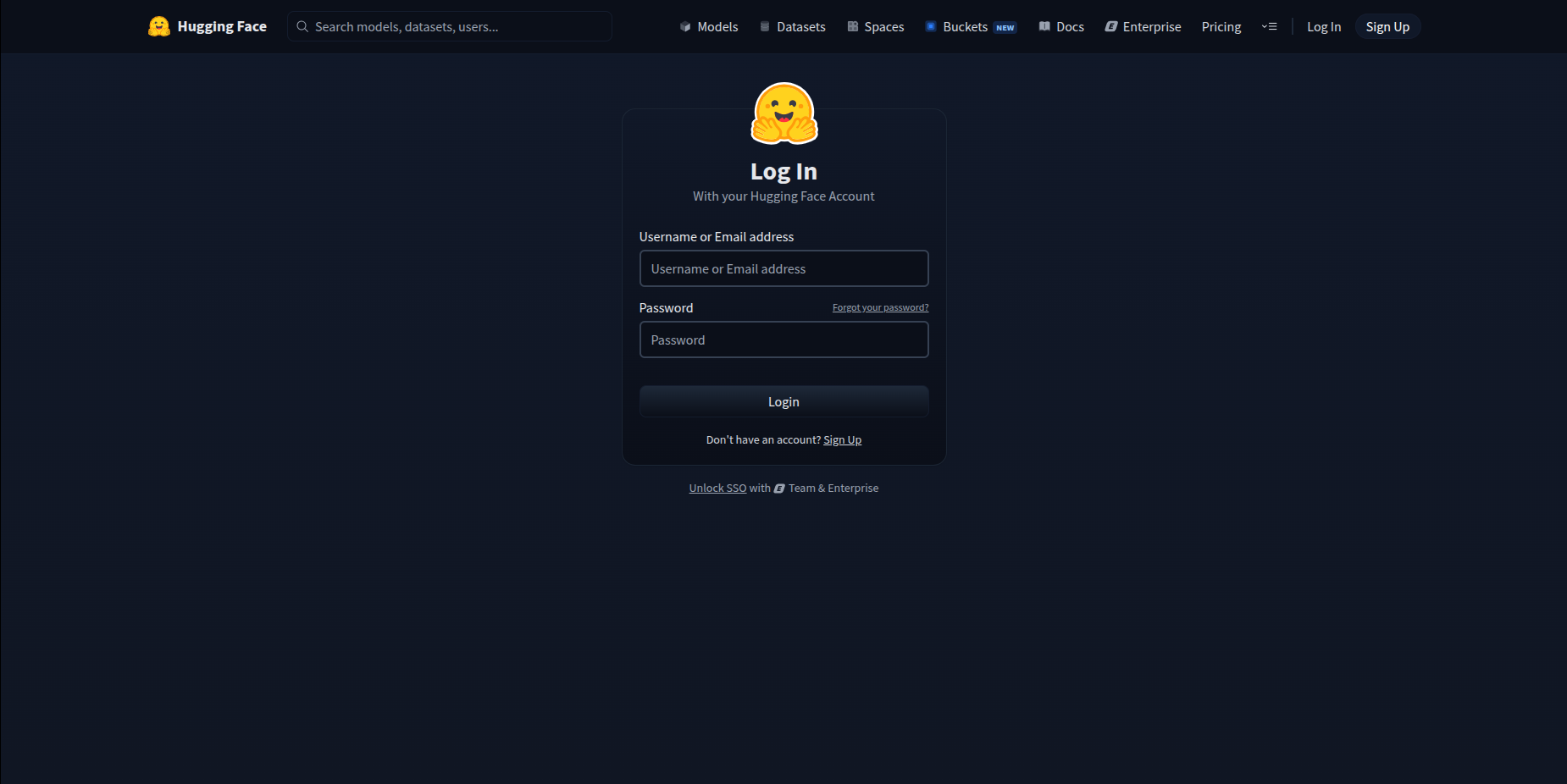
2
Open the Access Tokens page
Open your account settings and select Access Tokens, or go directly to huggingface.co/settings/tokens. Sign in again if prompted.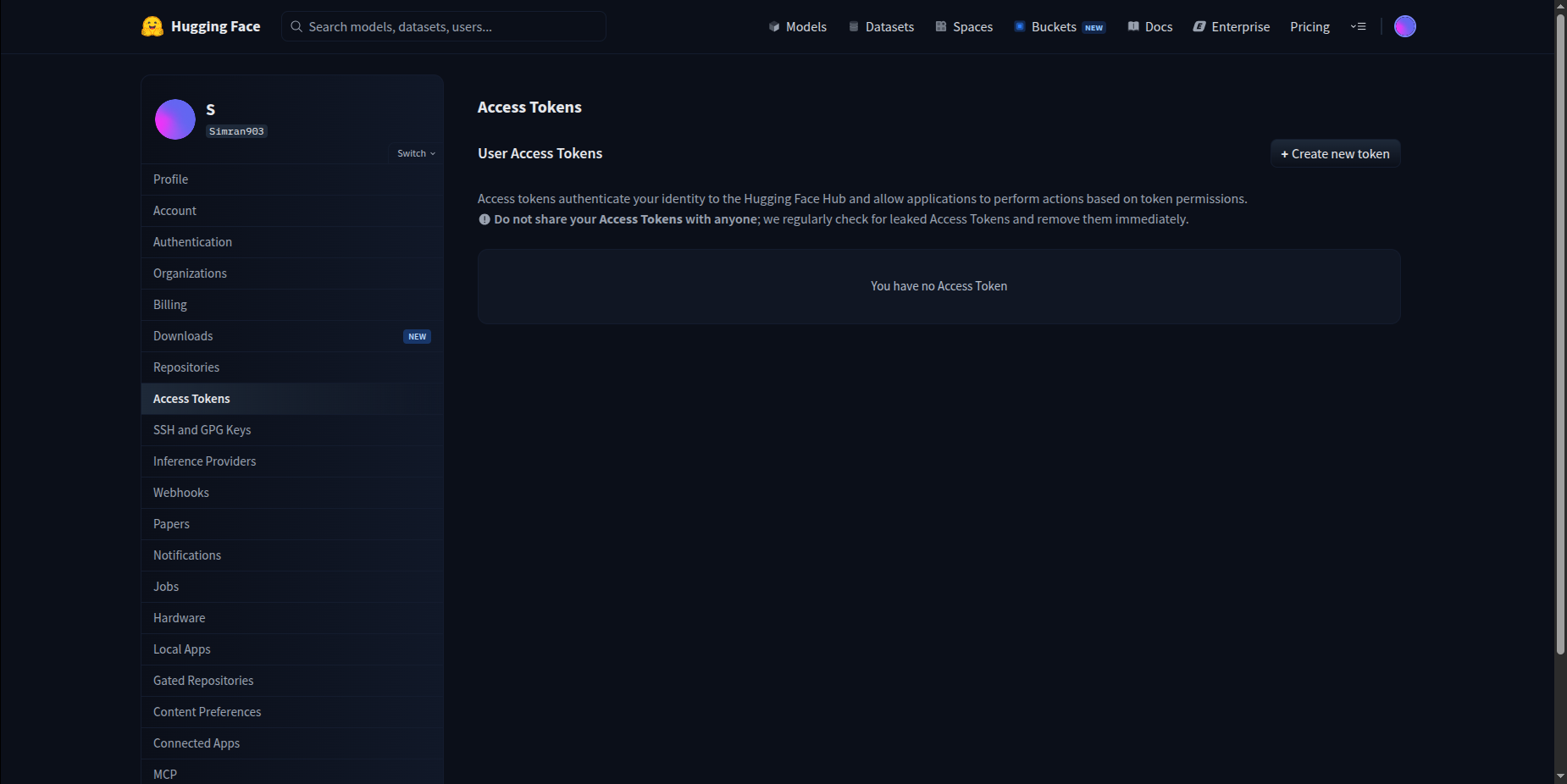
3
Start a new token
Click Create new token (shown as New token in some versions of the interface). The token configuration form opens.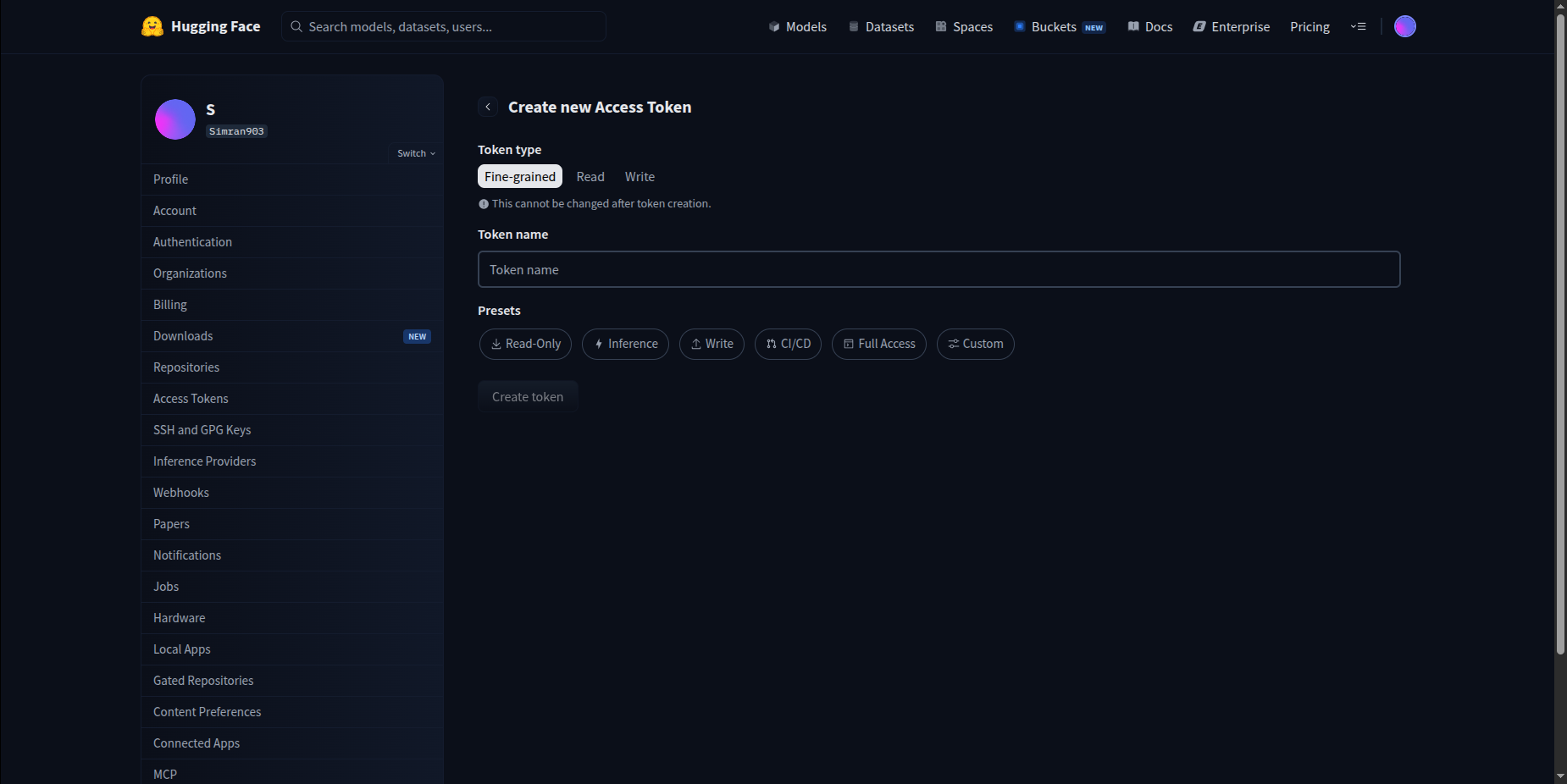
4
Choose Read access
Select the Read token type.If Hugging Face shows fine-grained permissions instead, grant only the read permissions for the repositories you plan to use.
5
Name the token
Enter a name that identifies the token’s purpose, such as 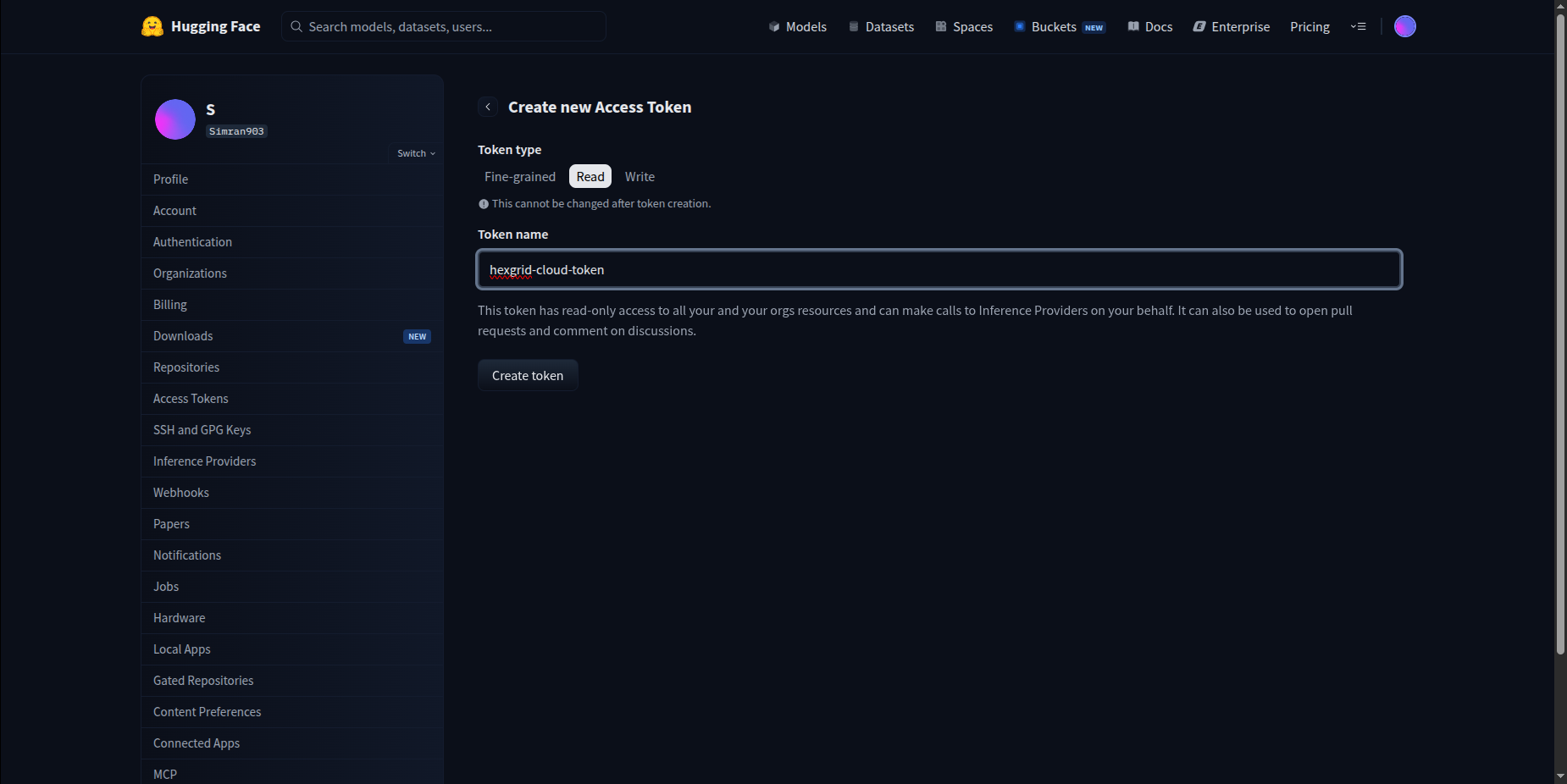
HexGrid Cloud.A dedicated token lets you revoke HexGrid Cloud’s access later without affecting your other applications.6
Create and copy the token
Click Create token. Hugging Face displays the new token, which starts with This example is not a working token.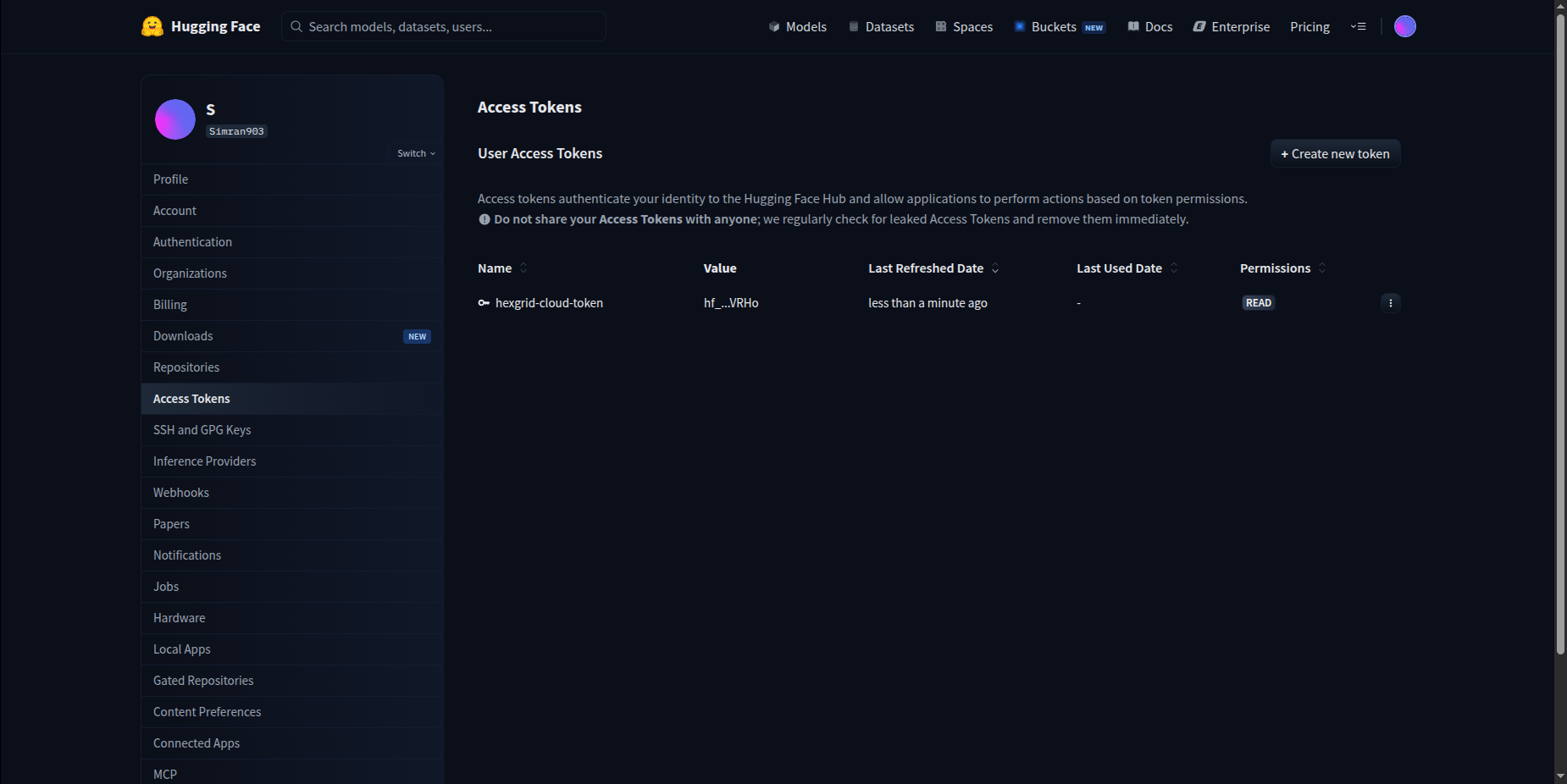
hf_:Add the token to HexGrid Cloud
1
Open Third Party Tokens
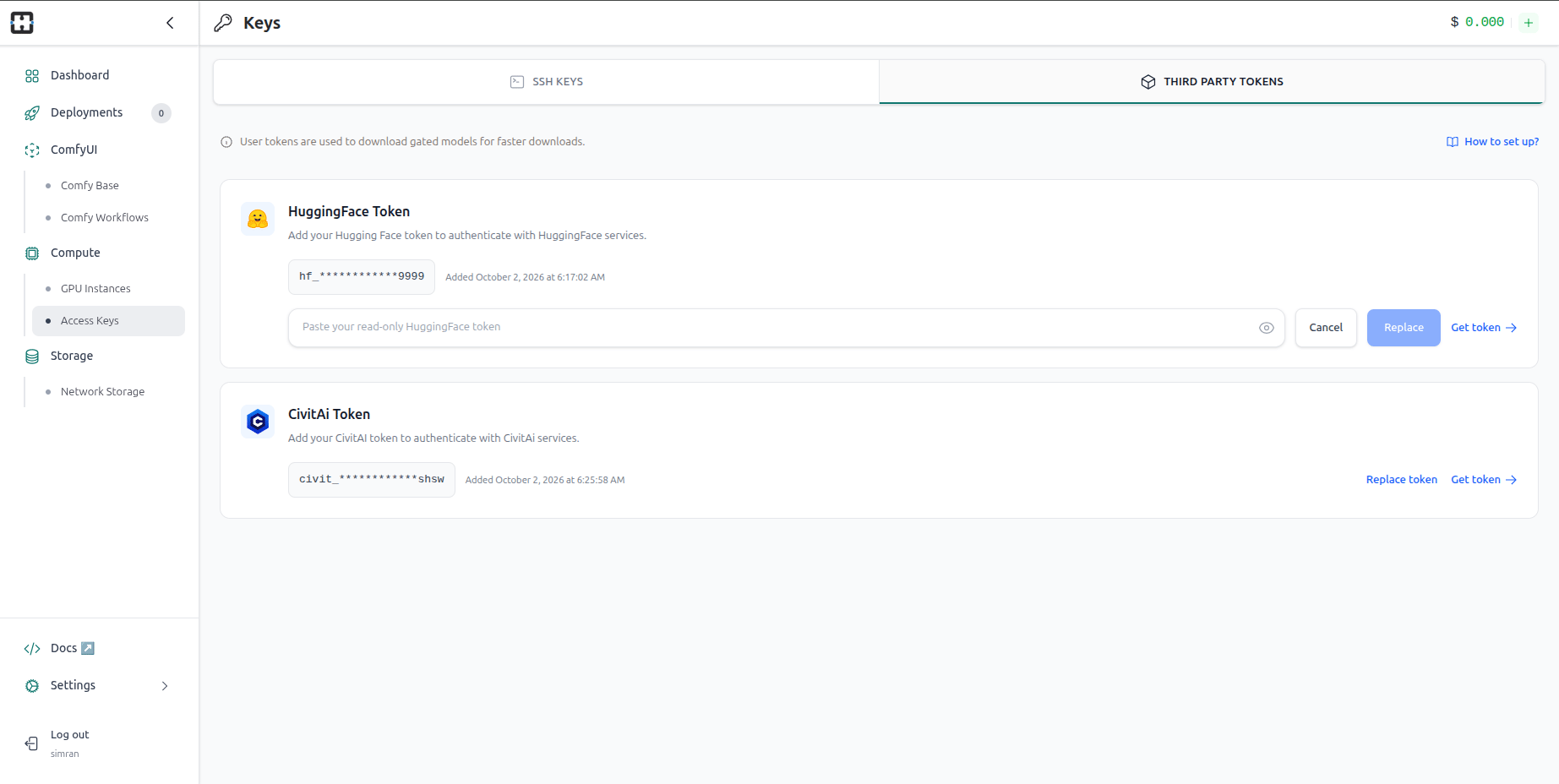
Sign in to HexGrid Cloud. In the left sidebar, go to Compute → Access Keys, then select the Third Party Tokens tab.Find the HuggingFace Token card. You can ignore the CivitAI Token card.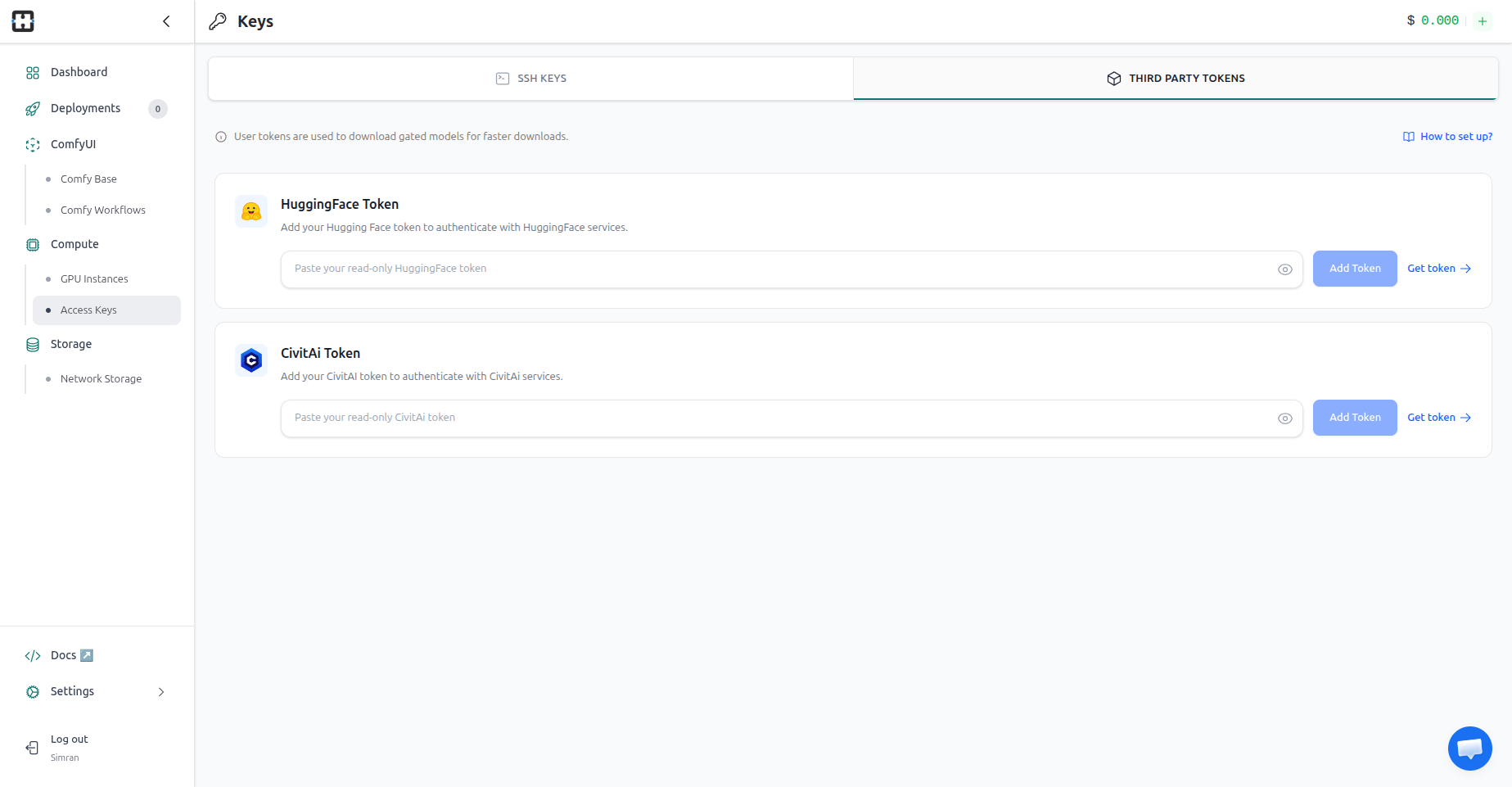
2
Paste and save the token
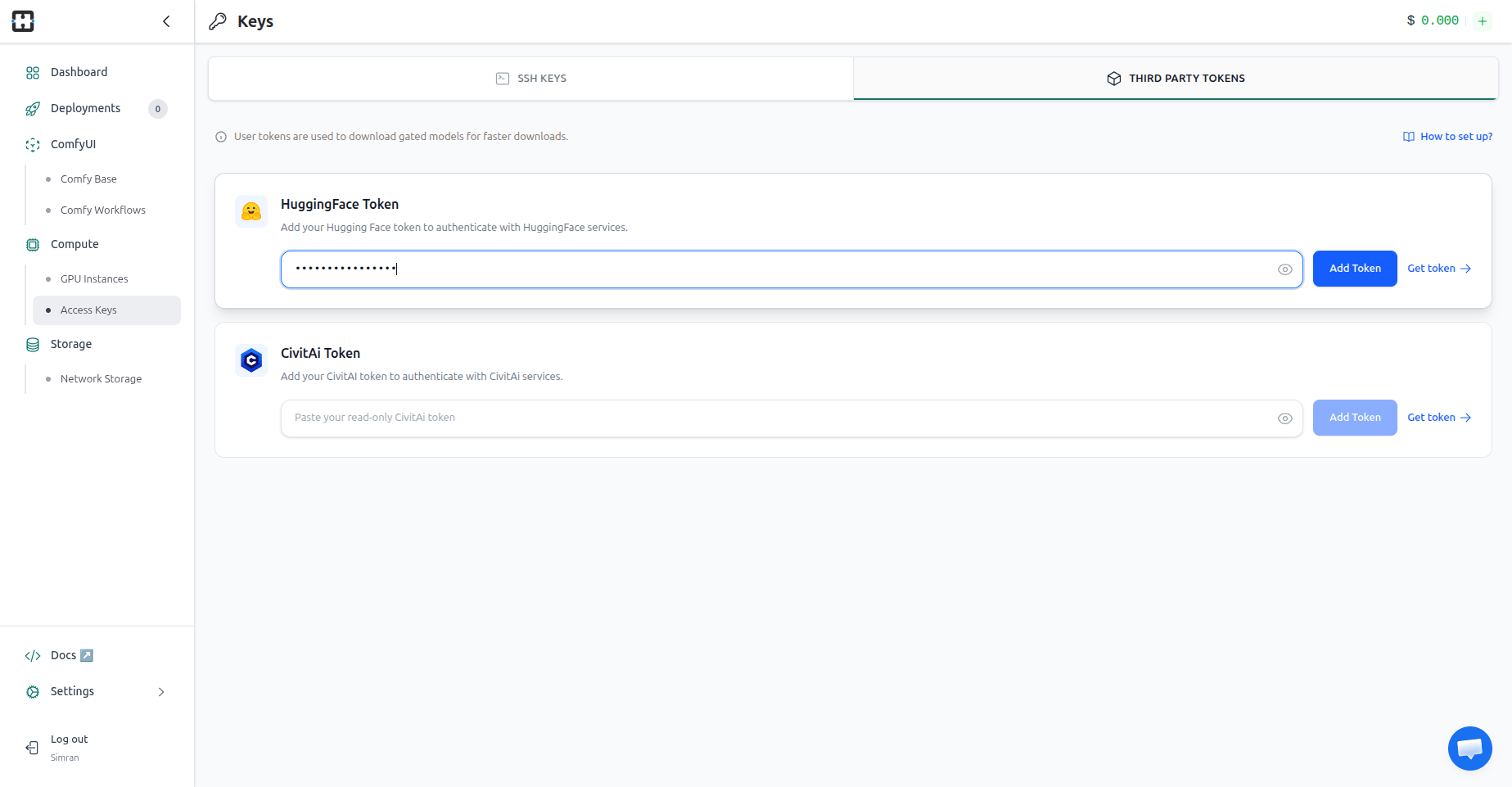
- Paste your token into the input field on the HuggingFace Token card.
- Click Add Token once it becomes enabled.
- Wait for HexGrid Cloud to save the token.
3
Confirm the token was saved
The card now shows your token in masked form with the date and time it was added. HexGrid Cloud never displays the full token again.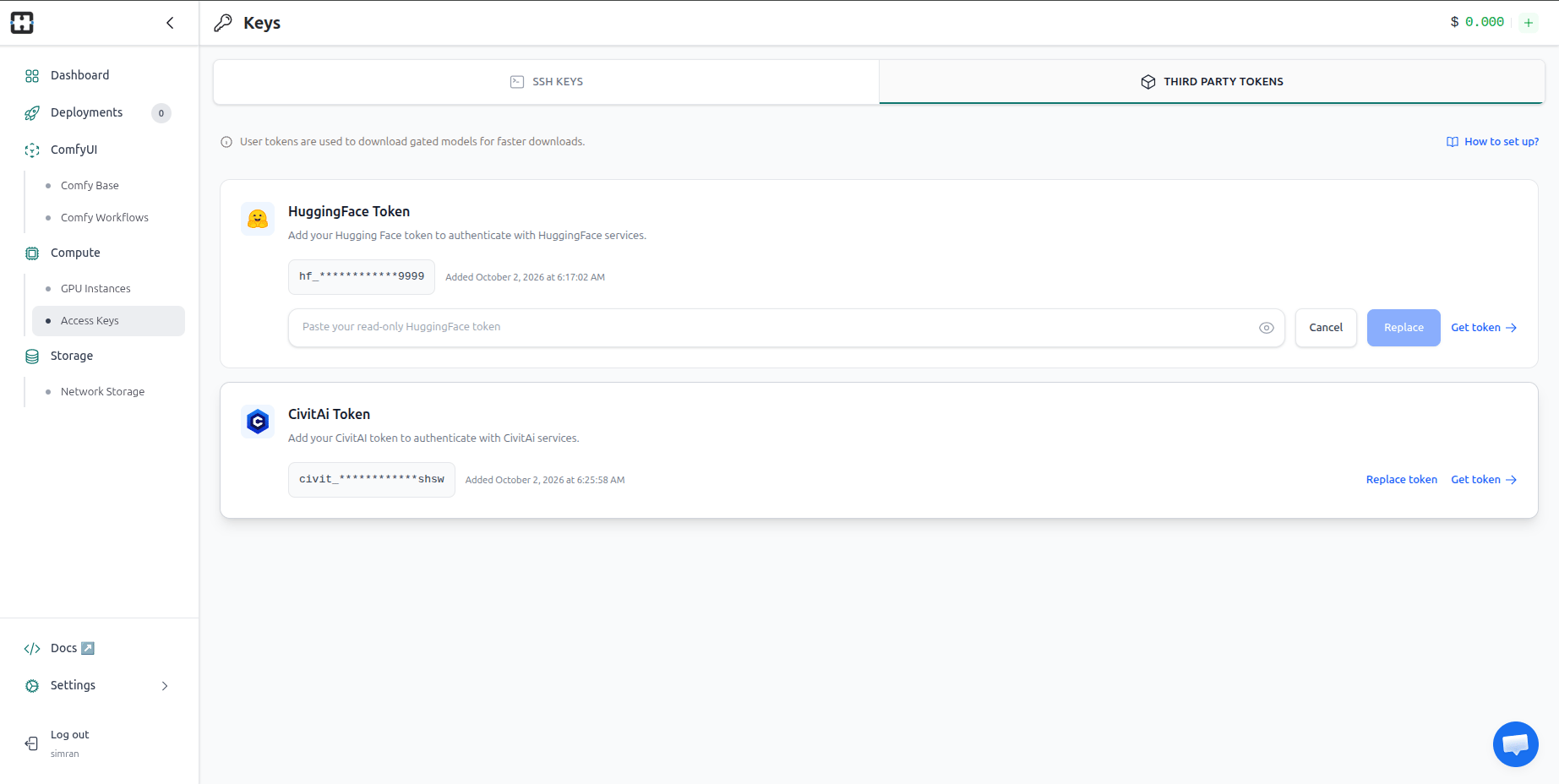
Troubleshoot model downloads
A saved token confirms that HexGrid Cloud has the credential, not that every download will succeed. If a model fails to download, check that:- The token appears on the HuggingFace Token card.
- The token has Read access, or the fine-grained read permissions the repository needs.
- The token has not been revoked or deleted in Hugging Face.
- You have accepted the model’s terms or been approved for access, if the model is gated.
- Your Hugging Face account can access the repository and the files you requested.
Replace the token
Replace the saved token if it expires, is revoked, stops working, or you create a new one.- Go to Compute → Access Keys → Third Party Tokens.
- On the HuggingFace Token card, click Replace token.
- Paste your new Read token.
- Click Replace to save it, or Cancel to keep the existing token.
Security best practices
- Grant read access only. HexGrid Cloud does not need write permissions.
- Keep the token private. Do not post it in chats, issue trackers, screenshots, or documentation.
- Keep tokens out of code. Never hardcode a token or commit it to a repository.
- Use one token per application. You can then revoke a single integration without disrupting others.
- Revoke exposed tokens immediately and replace them with new ones.
Quick reference
| Where | Path |
|---|---|
| Hugging Face | Settings → Access Tokens → Create new token → Read → Name → Create token → Copy |
| HexGrid Cloud | Compute → Access Keys → Third Party Tokens → HuggingFace Token → Add Token |
Useful links
Hugging Face
Sign in or create an account
Hugging Face Access Tokens
Create and manage access tokens
HexGrid Cloud
Open HexGrid Cloud